Adding a TOTP Account
Add a New 2FA Code in Seconds
Open the Seedkeeper PRO App, tap Add account, scan the QR code your service provides, review the details, then save and scan your Seedkeeper PRO to store it.
Overview
Any service offering two-factor authentication via an authenticator app (Gmail, Microsoft 365, and most others) can be set up directly on your Seedkeeper PRO instead of a phone-based app. The codes it generates follow the TOTP standard, so any compliant service accepts them. Where the service also supports passkeys, those are the stronger option, since a one-time code can still be phished - see Passkey vs OTP.
Step-by-Step Instructions
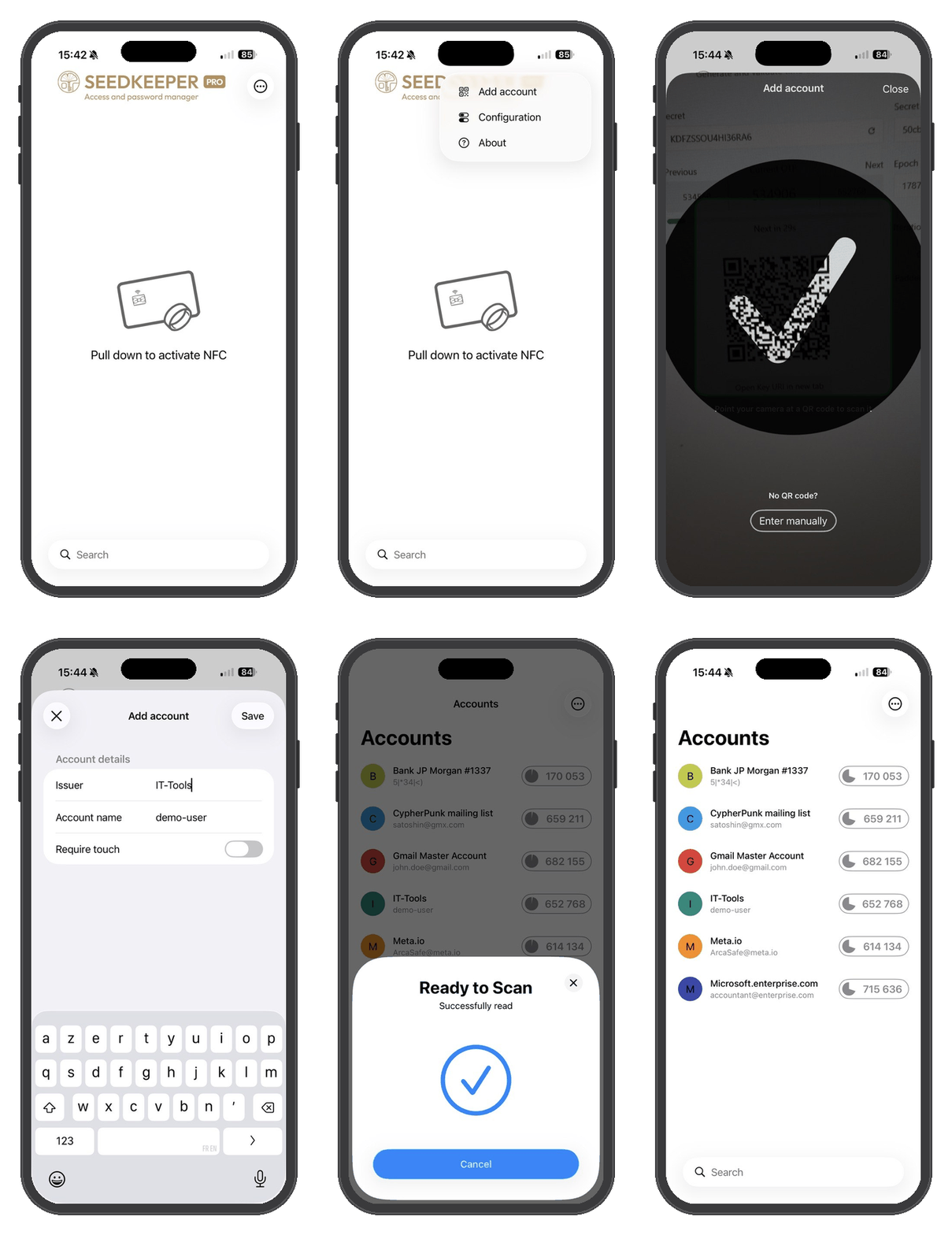
Step 1: Open the app and go the the menu
Tap the 3-dot menu on the top right corner.
Step 2: Tap Add account
Click on "Add account"
Step 3: Scan the QR code
Scan the QR code provided by your service (Gmail, Microsoft 365, or any other provider).
A checkmark confirms a successful scan.
Step 4: Review the details
If you want you can change the name of the issuer or the account name for better clarity.
Step 5: Save
Tap Save. The app will prompt you to scan your Seedkeeper PRO.
Your OTP account is now saved and ready to use.
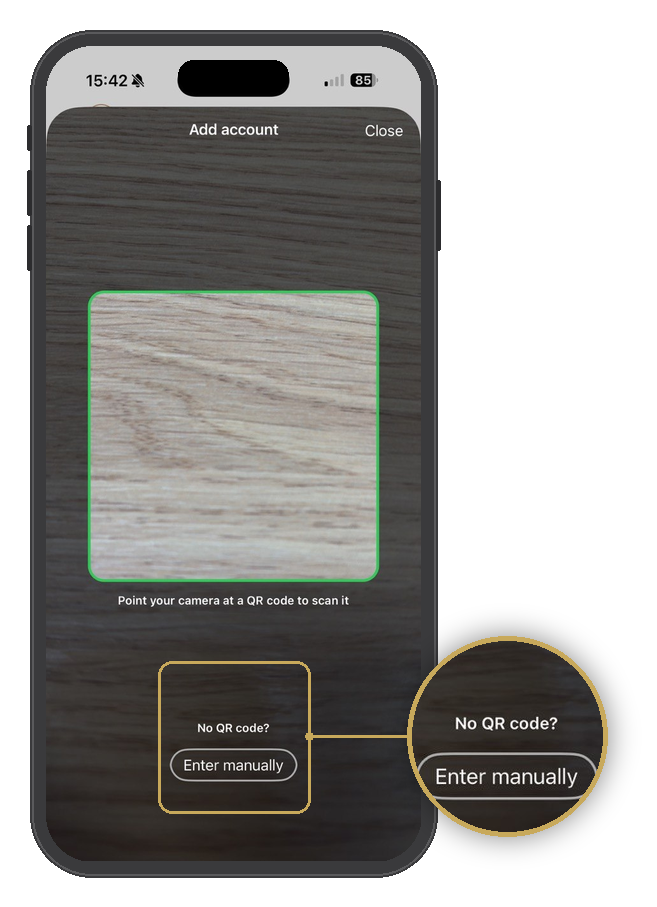
No QR Code Available?
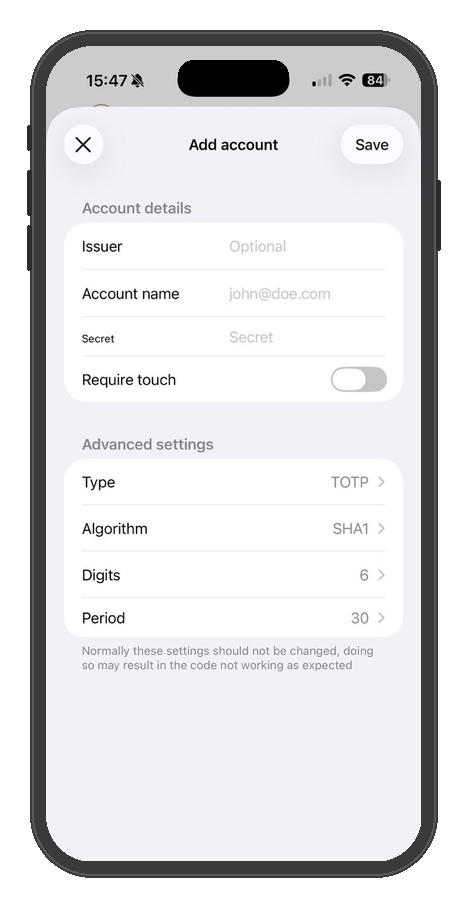
If you can't scan the QR code, or your service doesn't provide one, tap No QR code? Enter manually to input the account details by hand instead.
FAQ
What if I can't scan the QR code?
Enter the account details manually - see No QR Code Available? above.
Do I need a PIN to add an OTP account?
Not to add one, but you can set up a PIN to protect access afterward - see Setting Up an OTP Access PIN.
Should I save the QR code somewhere before adding it?
Yes, if you want a backup device to work with this account too - see Backup and Restore Procedures.