Backup and Restore Procedures
Protect Your OTP Codes Before You Need To
You can't clone or export OTP codes from one Seedkeeper PRO to another - the secure element only lets you write codes in, never read them back out. To have the same codes on multiple devices, add each code to every device at the same time, or save the original QR code/secret to set it up again later.
Overview
OTP codes on a Seedkeeper PRO are, by design, write-only. The shared secret behind each code can be written into the secure element, but never read back out - the same hardware-level protection that keeps your codes safe also means there's no way to copy them to another device afterward.
That shared secret is also why OTP differs from a passkey, which has no secret held by both sides - see Passkey vs OTP. This is different from your password manager, which does support device-to-device backup - see Backup & Recovery.
Setting Up a Backup the Right Way
Add the Same Code to Multiple Devices at Once
If you already have more than one Seedkeeper PRO, the simplest approach is to add each new OTP code to all of them at the same time, while the service's setup QR code or secret is still available on screen.
Or Save the Original QR Code or Secret
If you only have one device right now, save a copy of the setup QR code (a screenshot works) or the shared secret key itself, and store it somewhere secure. You can use it to set up a backup device later, whenever you get one.
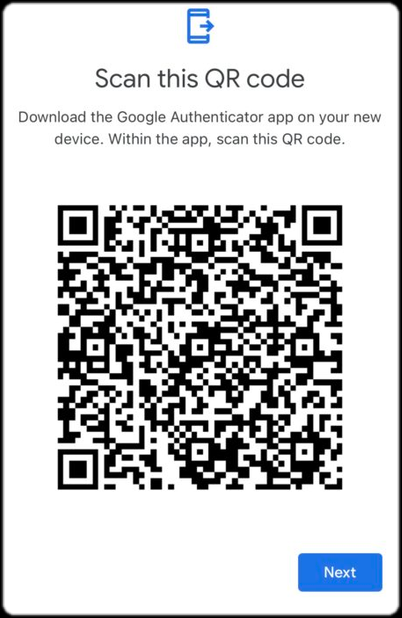
Gmail OTP code
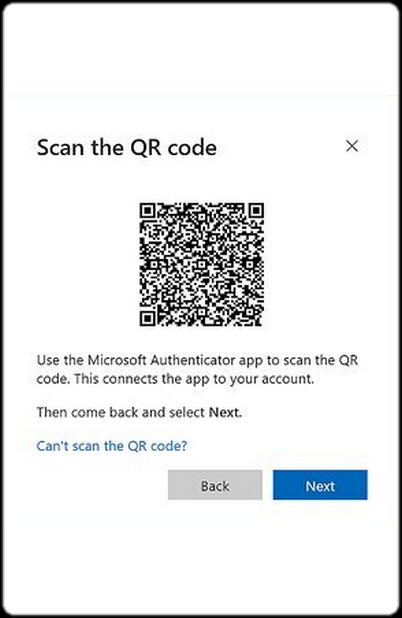
Microsoft 365 OTP code
Anyone with access to the original QR code or secret can generate the same OTP codes as your Seedkeeper PRO - store it with the same care you'd give the credential itself.
If You Didn't Save a Backup
If you added a code to one device without saving the original QR code or secret, and later get a second Seedkeeper PRO, there's no way to migrate the existing credential. Instead:
- Log in to the account and delete the original OTP credential
- Set up a new OTP credential for that account
- Add this new code to both Seedkeeper PRO devices at the same time
FAQ
Can I export or clone OTP codes from one device to another?
No. Seedkeeper PRO's secure element only allows writing OTP secrets in, never reading them back out. See the Overview above.
What's the best way to back up a new OTP code?
Add it to every Seedkeeper PRO device you own at the same time, or save the original QR code/secret securely for later. See Setting Up a Backup the Right Way above.
I only set up one device and now want a backup - what do I do?
You'll need to generate a new credential from the service and add it to both devices at once. See If You Didn't Save a Backup above.