Managing OTP Entries
Everything You Can Do With a Stored OTP Code
See all your OTP accounts at a glance, search for a specific one, then tap any entry to recalculate an expired code, copy it, pin it to the top of your list, or delete it entirely.
Overview
Once you've added a few OTP accounts, the Seedkeeper PRO App gives you a full accounts list with everything you need to find, use, and manage each one. This article walks through every action available.
A Clear Overview of All Your Accounts
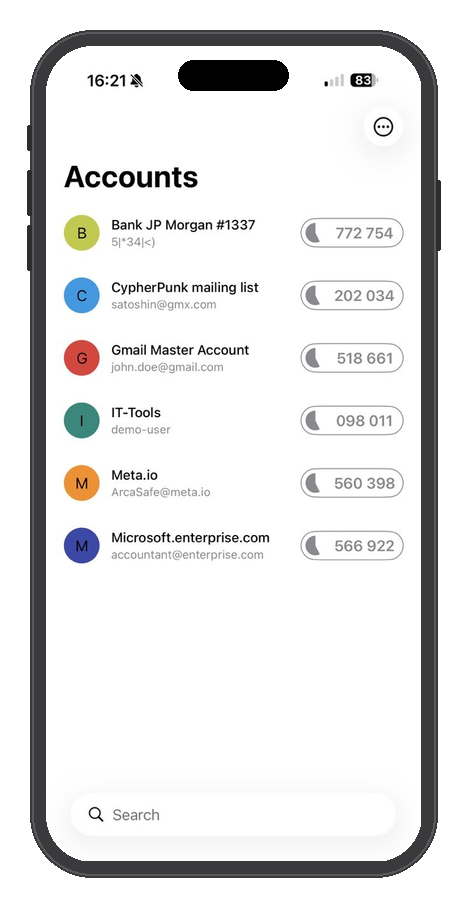
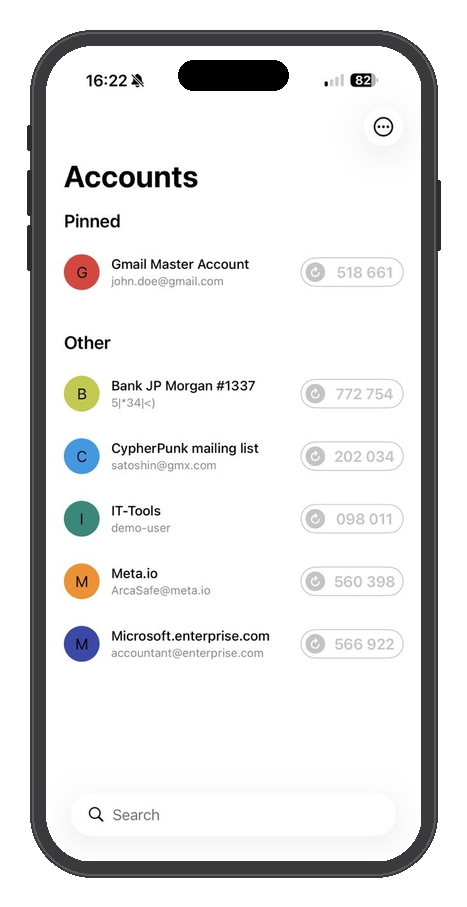
Open the app and scan your Seedkeeper PRO to land on your Accounts list. Every OTP secret you've added is shown here, with its issuer, the account name (usually an email or username), and its current code.
Searching for a Specific Account
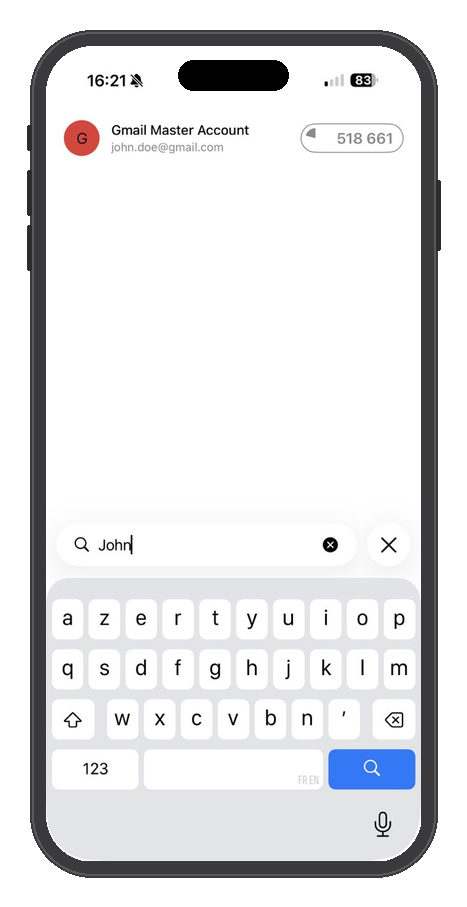
Once you have more than a handful of accounts, use the search bar at the bottom of the Accounts list to filter down to the one you're looking for - just start typing part of its name.
Tapping an Account: Your Options
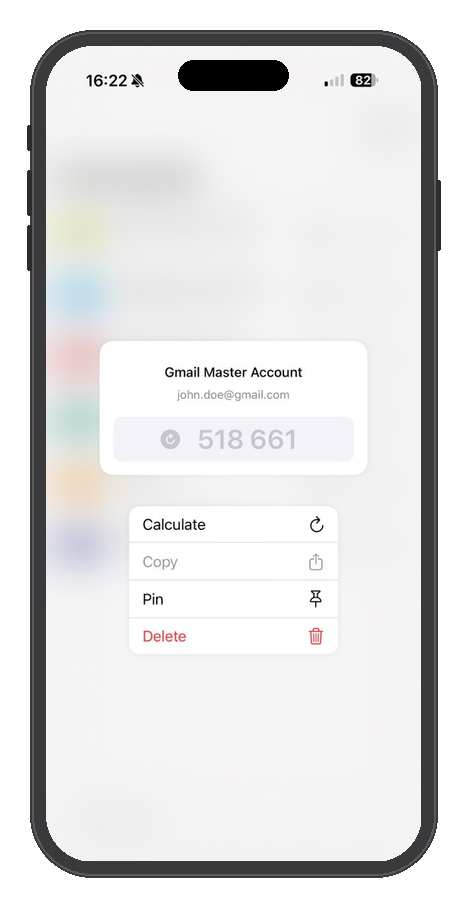
Tap any account in the list to open its options menu: Calculate, Copy, Pin, and Delete.
Calculate: Recalculating an Expired Code
Like any TOTP code, the one shown in your list expires after a short window - you'll see it grayed out once that happens. If a freshly calculated code is still rejected, the clock is the usual culprit - see Lost OTP Access. Since your Seedkeeper PRO's secure element generates the code fresh each time rather than storing a live countdown, you'll need to scan your device again to get a current one.
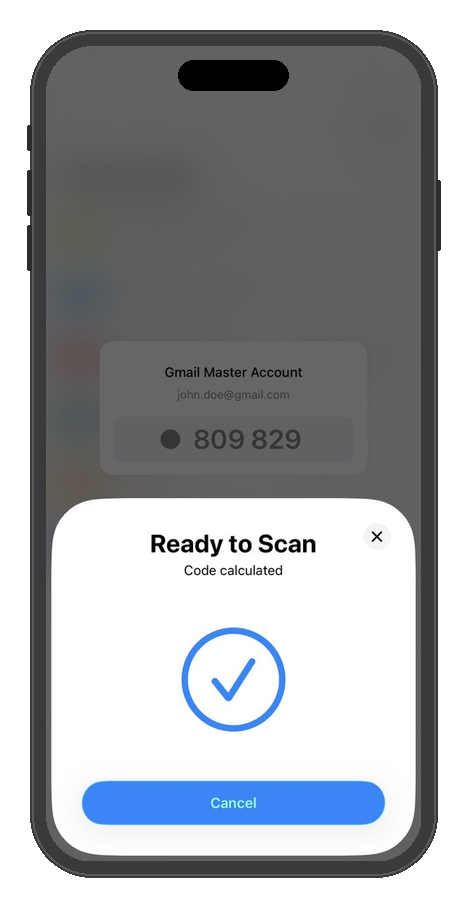
Tap Calculate, then scan your Seedkeeper PRO when prompted.
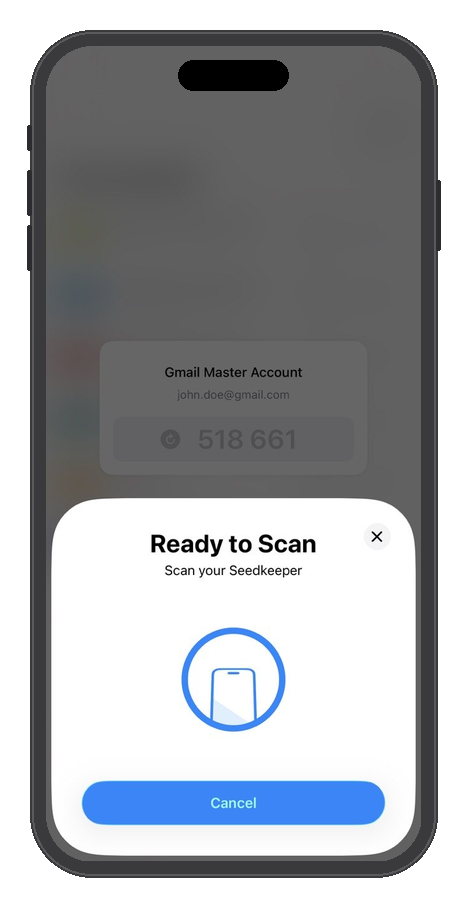
Once the scan completes, the app confirms the code has been calculated, and the fresh, active code appears in the list.
Copy: Copying a Code to Your Clipboard
Tap Copy from the options menu to copy the current code to your clipboard, ready to paste wherever you need it. The app confirms with a "Copied to clipboard" message.
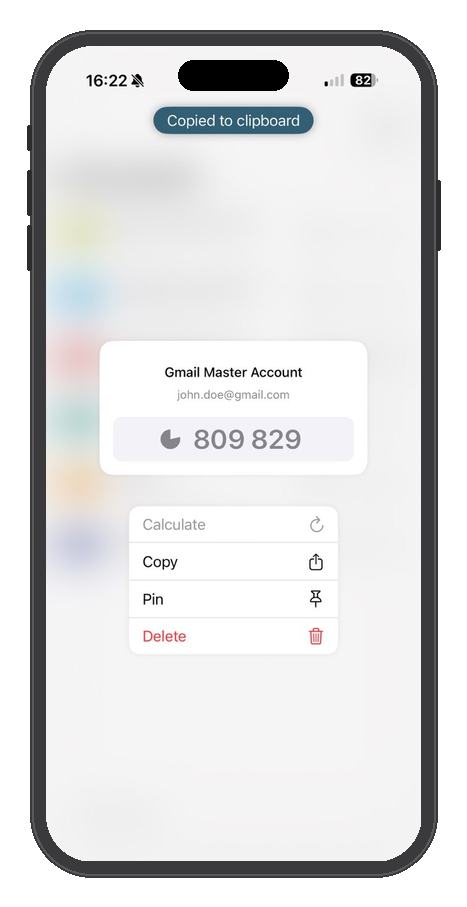
If the code shown is expired (grayed out), copy it after recalculating - see Calculate above.
Pin: Keeping an Account at the Top
Tap Pin to move an account into a dedicated Pinned section at the top of your Accounts list - handy for the accounts you check most often, so you don't have to scroll or search for them every time.
Delete: Removing an Account for Good
Tap Delete to remove an account entirely. You'll be asked to confirm, since this permanently deletes the account from your Seedkeeper PRO - including your ability to generate codes for it going forward.
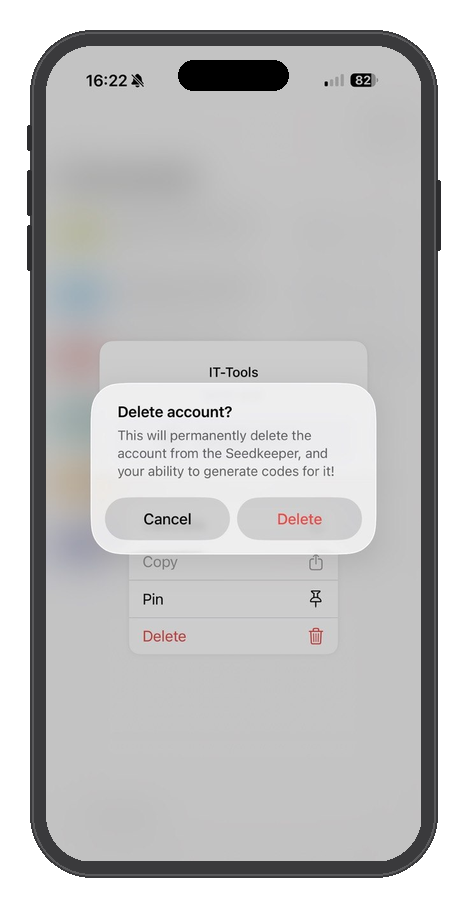
Deleting an OTP account is permanent - there's no cloud copy to restore from. If you might need this account again, make sure you've saved the original QR code or secret first. See Backup and Restore Procedures.
FAQ
Why is my OTP code grayed out?
It's expired. Tap the account, then Calculate, and scan your Seedkeeper PRO to get a fresh code. See Calculate above.
Where does a copied code go?
Your device's clipboard - paste it wherever you need it, right after copying. See Copy above.
Can I unpin an account?
Yes - the same Pin option lets you remove it from the Pinned section the same way you added it.
Can I recover a deleted OTP account?
Only if you saved the original QR code or secret beforehand. See Backup and Restore Procedures.