Managing Passkeys
See and Remove the Passkeys on Your Device
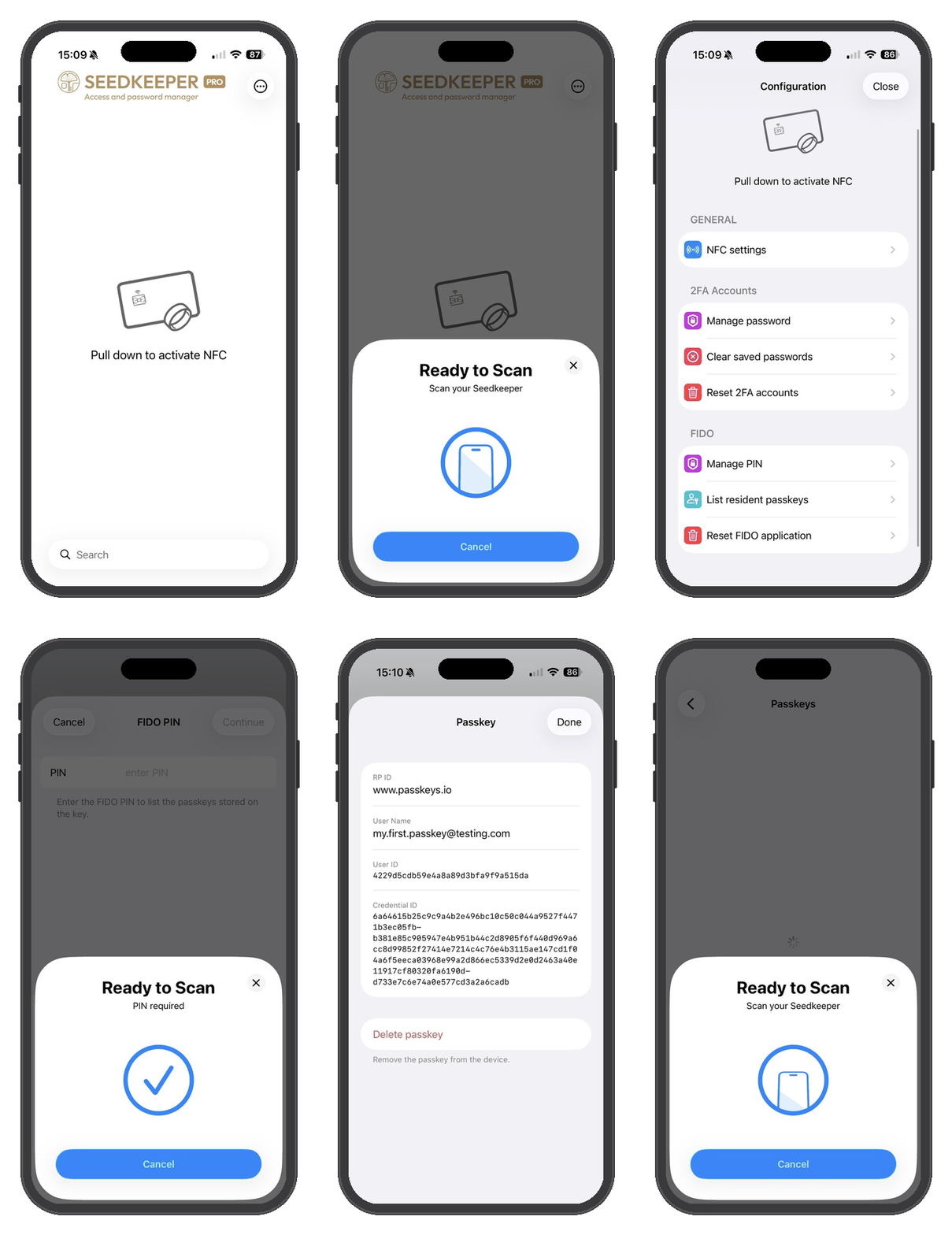
List every passkey stored on your Seedkeeper PRO from Configuration → FIDO → List Resident Passkeys, and delete any of them directly from that same list.
Overview
Your Seedkeeper PRO stores every passkey you've created directly on its secure element.
This article covers viewing that list and removing a passkey you no longer need.
Listing Your Passkeys
Step 1: Get ready
You'll need your Seedkeeper PRO card or ring and the Seedkeeper PRO App installed.
Step 2: Open the app and scan your device
Open the Seedkeeper PRO App, then pull down (iOS) or tap refresh (Android) to activate NFC and scan your device. You'll land on the list of OTP codes stored on your device.
Step 3: Open the menu
Tap the 3-dot menu in the top right corner.
Step 4: Go to Configuration → FIDO → List Resident Passkeys
Step 5: Scan your device
Step 6: Enter your passkey PIN
The app asks for your passkey PIN to access the passkeys stored on your device.
Step 7: Scan your device again
Your list of passkeys appears.
Managing Passkeys From Windows or Chrome
The Seedkeeper PRO App is not the only way to do this. Windows and Chromium browsers can list and delete the passkeys on your device natively, and set the FIDO PIN too - see Managing Passkeys From Your Computer.
Deleting a Passkey
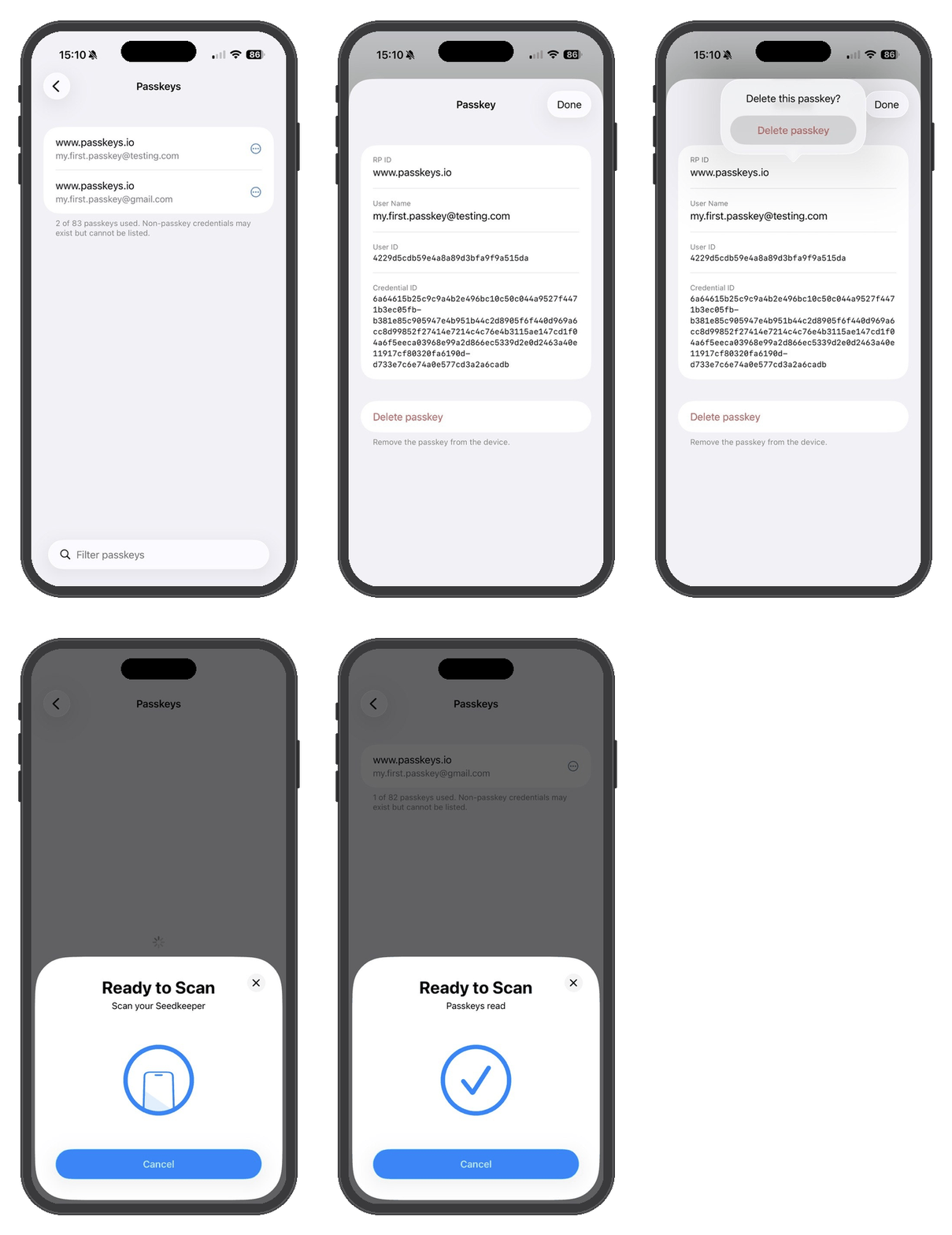
Step 1: Tap the icon next to the passkey
From your passkeys list, tap the icon next to the one you want to remove.
Step 2: Tap Delete Passkey
Step 3: Confirm
Tap Delete Passkey again to confirm.
Step 4: Scan your device
Scan your Seedkeeper PRO to complete the deletion.
FAQ
Do I need my passkey PIN to view my passkeys?
Yes - see Setting Up Your Passkey PIN if you haven't set it up yet.
Can I manage passkeys without the Seedkeeper PRO App?
Yes. Windows and Chromium browsers can both list and delete them, because the device implements standard CTAP2 credential management. See Managing Passkeys From Your Computer.
Can I undo a passkey deletion?
No. Once deleted, a passkey is permanently removed from your device. You'd need to set up a new passkey with that service - see Adding a New Passkey.
Does deleting a passkey here also remove it from the website?
Deleting it here removes the credential from your device, so it can no longer be used to sign in anywhere - that part is immediate. The service may still show a stale entry in its own list of registered passkeys, so remove it there too to keep your account settings tidy and avoid confusion later.