Passkey Backup Strategy
Redundancy Without a Backup Button
Passkeys can't be backed up device-to-device like passwords can. Instead, protect yourself by registering more than one Seedkeeper PRO device - a Main and one or more Backups - as separate passkeys on each account, right from the start.
Overview
This is different from your password manager, which you back up device-to-device (see Backup & Recovery). Passkeys don't work that way - see Using Passkeys Across Devices. There's no copy to make. The way to protect yourself is to register more than one device on each account from the start.
Keep a Password Fallback Where Possible
Before switching an account fully over to passkeys, make sure you still know the login and password for it. Most services let you keep both a password and a passkey as sign-in options - having that fallback matters if something goes wrong with your Seedkeeper PRO before you've set up a backup.
Register Each Device as Its Own Passkey
For every account you want protected (Google, Amazon, Microsoft, and so on), go to its security settings and add a passkey - once per Seedkeeper PRO device you want to use. Each device gets its own, independent passkey registered with that service; nothing is copied between them.
Recommended Setup: Main + Backup(s) From Day One
We recommend setting this up from day one, rather than after something goes wrong:
- Main - your everyday device, often a ring for convenience
- Backup - a second device, often a card, kept somewhere safe
- Backup 2 (optional) - a third device for extra redundancy
Register all of them as separate passkeys on each important account as you set it up.
One device is a single point of failure
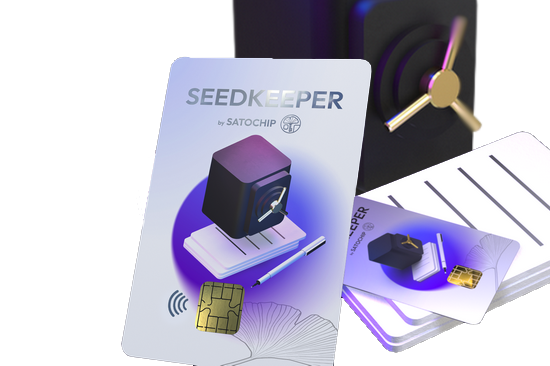
A backup Seedkeeper takes ten minutes to set up and removes the one real risk of hardware security: losing the only device that holds your credentials. Card, ring, or one of each - they pair in any combination.
Add a backup device
Store Your Devices Separately
Keep your Main and Backup devices in different physical locations, the same way you would for password manager backups - see Security Best Practices.
Test Your Backup Devices Periodically
A backup passkey you've never actually tried is a guess, not a safety net. Every so often, sign in with your Backup device to confirm it still works.
If You Lose Every Registered Device
If every device registered on an account is lost, Seedkeeper can't recover the passkey for you - you'd need to go through that service's own account recovery process instead.
FAQ
Does this work the same way as backing up my passwords?
No. Passwords are copied device-to-device via Backup & Recovery. Passkeys are registered independently on each device - see the Overview above.
How many backup devices should I have?
At least one Backup device in addition to your Main is a solid starting point. A second Backup adds more redundancy if you want it.
What if I lose my Main device but still have a Backup?
You can keep signing in with your Backup device. Consider registering a new device to replace the one you lost, so you're not down to a single device going forward.