Setting Up Your Passkey PIN
Secure Your Passkeys with Their Own Dedicated PIN
Seedkeeper PRO uses three independent PINs: one for the password manager, one for passkeys (the FIDO PIN, covered here), and an optional one for OTP access. Set the FIDO PIN once, from the Seedkeeper PRO App's Configuration menu, before creating your first passkey.
Overview
Seedkeeper PRO uses three independent PINs, and it is worth knowing which is which before you start:
| PIN | What it protects | Format | Attempts before lockout |
|---|---|---|---|
| Password manager PIN | Passwords, secure notes, seed phrases | 4 to 16 characters | 4 |
| FIDO PIN | Your passkeys | 4 digits minimum, numeric only | 8 |
| OTP access PIN (optional) | Viewing and generating OTP codes | Set by you | - |
Set the password manager PIN during the First Setup Guide, the FIDO PIN here, and the optional OTP access PIN in Setting Up an OTP Access PIN.
They are entirely separate: changing one does not affect the others, and knowing one gives no access to the others. This article covers the second - the PIN used by the FIDO2 applet that powers your passkeys.
Step-by-Step Instructions
Step 1: Get ready
You'll need your Seedkeeper PRO card or ring and the Seedkeeper PRO App installed.
Step 2: Open the app and scan your device
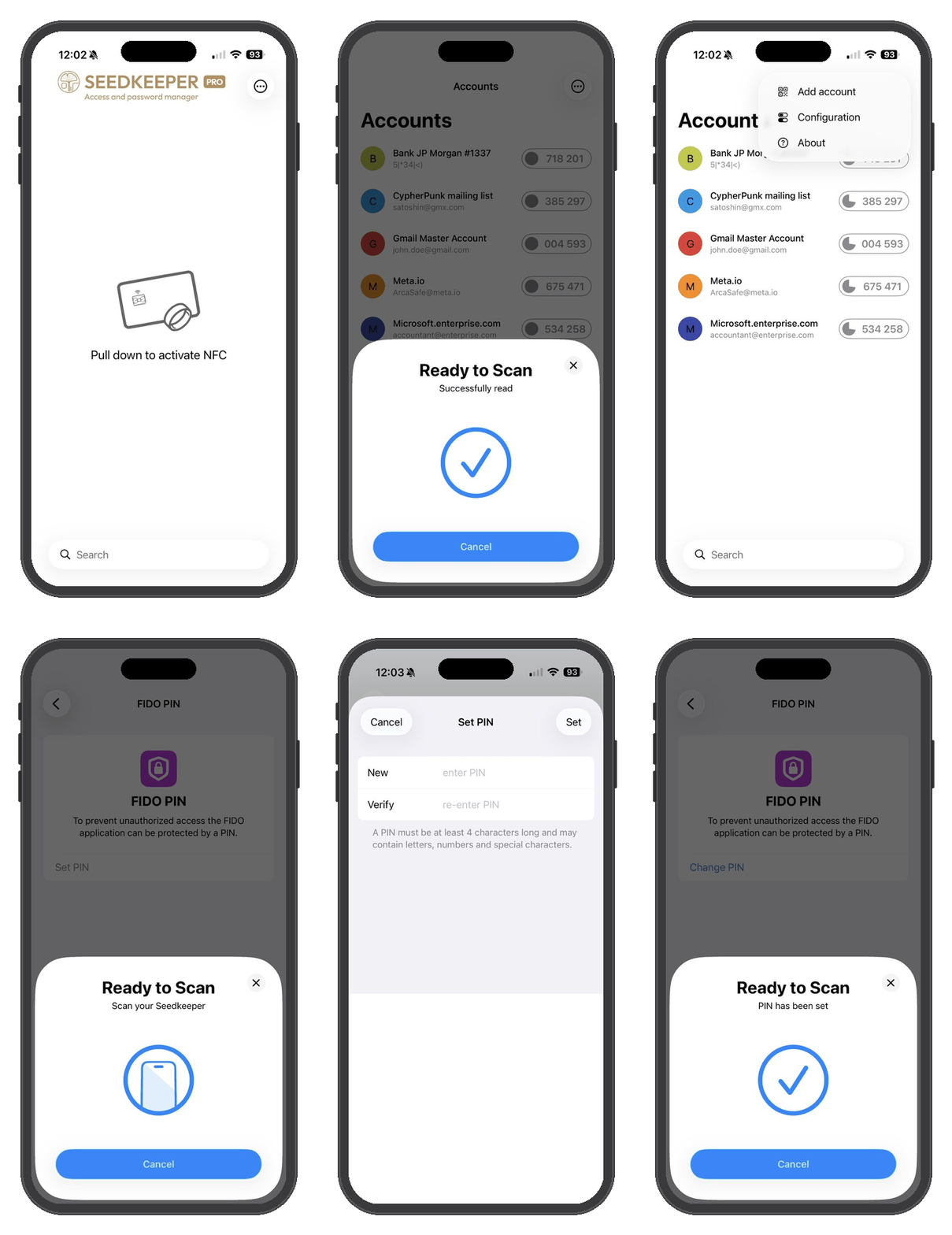
Open the Seedkeeper PRO App, then pull down (iOS) or tap refresh (Android) to activate NFC and scan your device. You'll land on the list of OTP codes stored on your device - empty if it's a blank device.
Step 3: Open the menu
Tap the 3-dot menu in the top right corner.
Step 4: Go to Configuration menu
Click on Configuration → FIDO then click on Manage PIN
Step 5: Scan your device
Scan again to check whether a FIDO PIN already exists on your device.
Step 6: Set (or change) your PIN
If no PIN is set yet, tap Set PIN and enter your new PIN twice (New and Verify).
The FIDO PIN is numeric, with a minimum of four digits. Longer is better: four digits is ten thousand possibilities, six digits is a million, and the device allows eight attempts before locking.
Step 7: Confirm
Scan your Seedkeeper PRO once more to save the PIN.
Once set, you're ready to move on to Creating Your First Passkey.
Setting the PIN From Windows Instead
The Seedkeeper PRO App is one way to set the FIDO PIN, not the only one. Because the device implements standard CTAP2 credential management, Windows and Chromium browsers can do it natively, with nothing installed - see Managing Passkeys From Your Computer for the full walkthrough, including the reset button worth avoiding.
Modify Your PIN
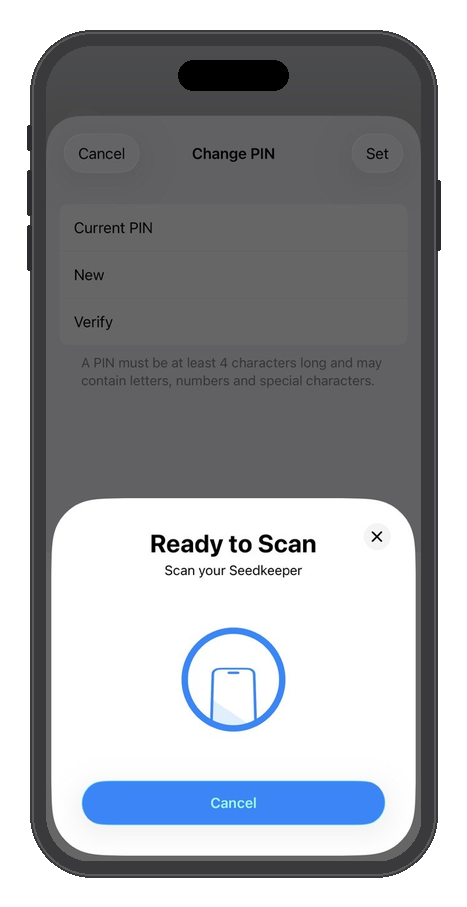
If you already have a PIN set for your passkeys and OTP codes, the procedure to change it is very similar to setting it up the first time. You'll go through the same menu (Configuration → FIDO → Manage PIN), but instead of Set PIN, the button will read Change PIN. Before you can enter a new PIN, you'll first be asked to type in your existing PIN to confirm it's really you - only then can you set and verify a new one.
The FIDO applet locks after 8 consecutive incorrect attempts, and there is no way to recover a forgotten PIN. The only option is resetting the applet to its original state, which permanently erases every passkey stored on the device - see Resetting Your Seedkeeper. Your passwords and secure notes are unaffected, as they are protected by a separate PIN with its own, separate attempt counter.
FAQ
I already have a PIN set - how do I change it?
Follow the same steps above - the button reads Change PIN instead of Set PIN, and you'll also need to enter your current PIN before the new one.
How many PINs does a Seedkeeper PRO have?
Three, and they are independent: the password manager PIN, the FIDO PIN protecting your passkeys, and an optional OTP access PIN. Changing one does not affect the others, and each has its own attempt counter. See the Overview above.
How long can a FIDO PIN be, and can it contain letters?
The FIDO PIN is numeric, with a minimum of four digits. This is different from the password manager PIN, which accepts 4 to 16 characters. The two are set separately and do not have to match.
How many wrong PIN attempts lock the device?
Eight consecutive failures lock the FIDO applet. The password manager PIN is stricter, locking after four. Each counter is independent, so failures on one do not affect the other.
Can I set the FIDO PIN without the Seedkeeper PRO App?
Yes. Windows and Chromium browsers can both set and change it natively, because the device implements standard CTAP2 credential management. See Managing Passkeys From Your Computer.
Do I need to set this up before creating a passkey?
Yes, the FIDO PIN must be set up first. See the steps above.
What if I forget this PIN?
There is no recovery. Losing the FIDO PIN means resetting the FIDO applet, which permanently erases every passkey stored on the device - see Resetting Your Seedkeeper. Your passwords and secure notes are untouched, since they sit behind a different PIN. This is exactly why a second registered device matters - see Passkey Backup Strategy.