Creating Secure Notes
Store Any Text Securely on Your Seedkeeper
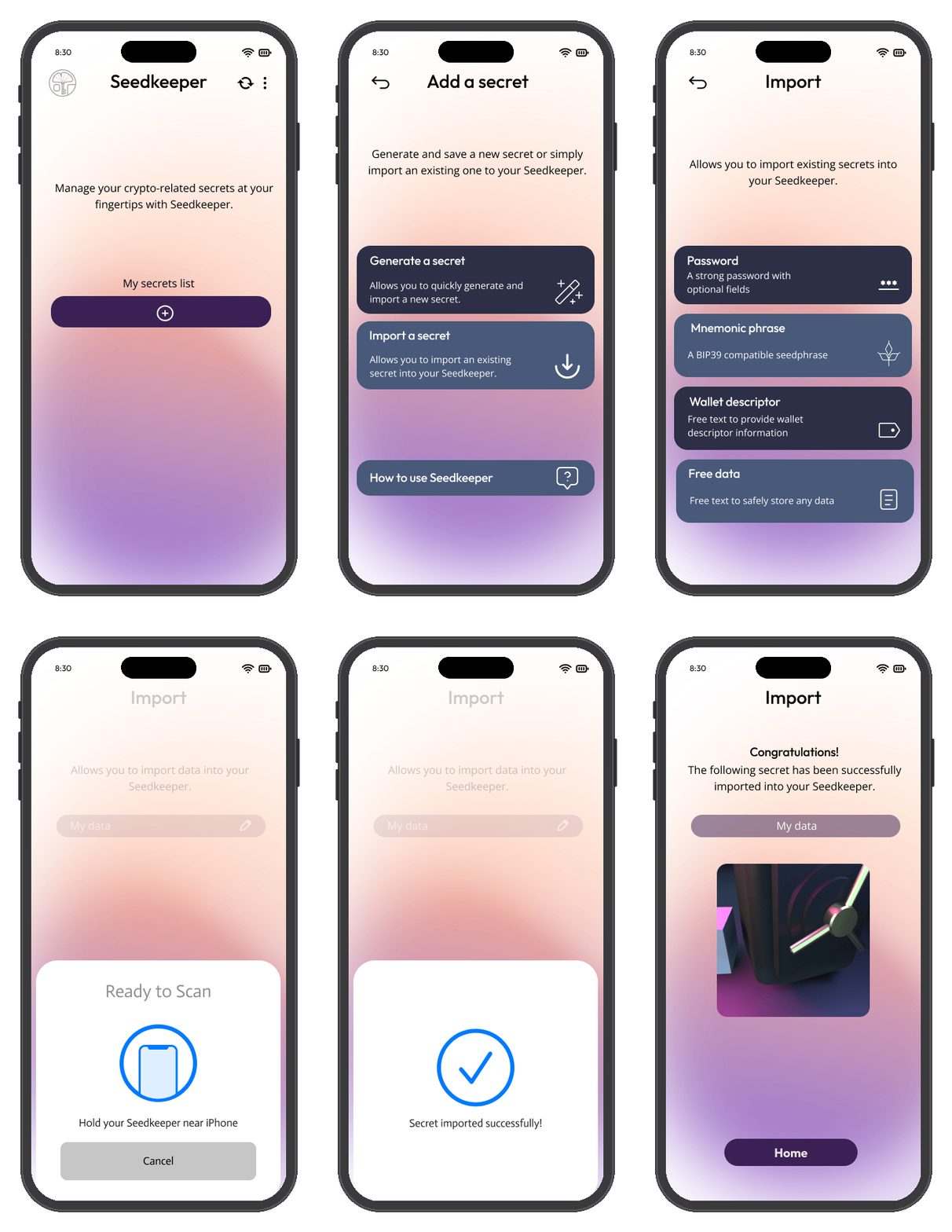
Scan your Seedkeeper, tap Import a Secret → Free Data, give it a label, type in your data, then save it back to your device.
Overview
Secure notes let you store any free-form text on your Seedkeeper - not just passwords. Recovery codes, PINs for other services, private information - anything you want to keep off the cloud.
One use worth highlighting: if you also use a cloud password manager, storing its master password here gives you an offline, hardware-backed copy of the one credential you cannot afford to forget - see Password Manager Explained.
Secure notes are also where non-BIP39 recovery material belongs. The Mnemonic Phrase option validates against the BIP39 checksum and rejects anything that fails, so an Electrum seed, a Monero 25-word phrase or a raw private key goes here instead - same secure element, same PIN, without the format check.
Step-by-Step Instructions
Step 1: Launch the app and scan your Seedkeeper
Open the Seedkeeper App and scan your card or ring, then enter your personal PIN.
See the First Setup Guide if you haven't set up your PIN yet.
Step 2: Start importing a secret
Tap Import a Secret, then Free Data.
Step 3: Label your note
Specify a label - this is what distinguishes this secret from all the others in your list.
Step 4: Enter your data
Type in your raw data - any text you want to store.
Step 5: Save it to your device
Tap Import, then scan your card or ring again to store the note.
Your secure note is now saved on your Seedkeeper.
FAQ
What can I store in a secure note?
Any free-form text - recovery codes, PINs for other services, private information, or anything else you want to keep off the cloud.
Is there a size limit for secure notes?
There's no fixed limit per note - it can hold 256, 512 characters or more, as long as your device's total 8 KB memory isn't exceeded across all your stored secrets.
Where is my note stored?
Directly on your Seedkeeper device - there's no cloud involved. See Introduction for more on how Seedkeeper works.