Deleting a Password
Remove a Secret from Your Seedkeeper for Good
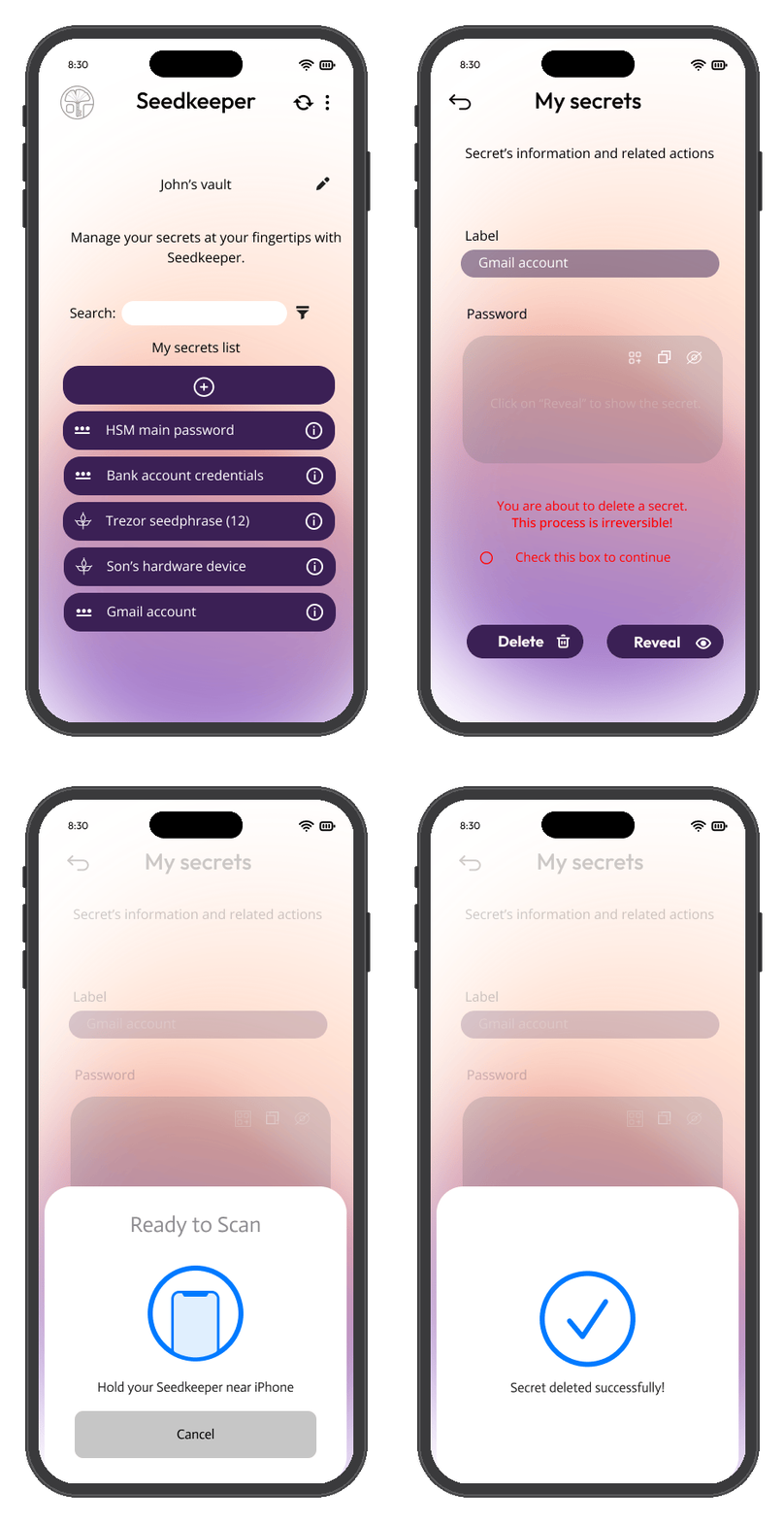
Select the secret, tap Delete, tick the confirmation box, and scan your card - deletion is permanent and irreversible.
Overview
Deleting removes a secret from your Seedkeeper's secure element for good - there's no undo, and no cloud copy to restore from. If you're deleting a password in order to update it, copy its details first - see Editing a Password.
Step-by-Step Instructions
Step 1: Select the secret
Open the entry you want to remove from your secrets list.
Step 2: Tap Delete
You can optionally reveal the secret to be sure you are deleting the right one. If you are sure this is the right secret to delete, tap the "Delete" button.
Step 3: Confirm
Tick the checkbox to confirm - this operation is irreversible.
Step 4: Scan your card
Deletion is complete once the scan finishes.
FAQ
Can I undo a deletion?
No. Deletion is permanent - there's no cloud copy or undo. If you have a Backup device, the deleted entry may still exist there if the backup was made before the deletion.
I want to update a password - should I delete it first?
Copy its current details first, then delete it, then recreate it with your changes. See Editing a Password for the full explanation.