Importing Existing Passwords
Bring a Password You Already Have Into Seedkeeper
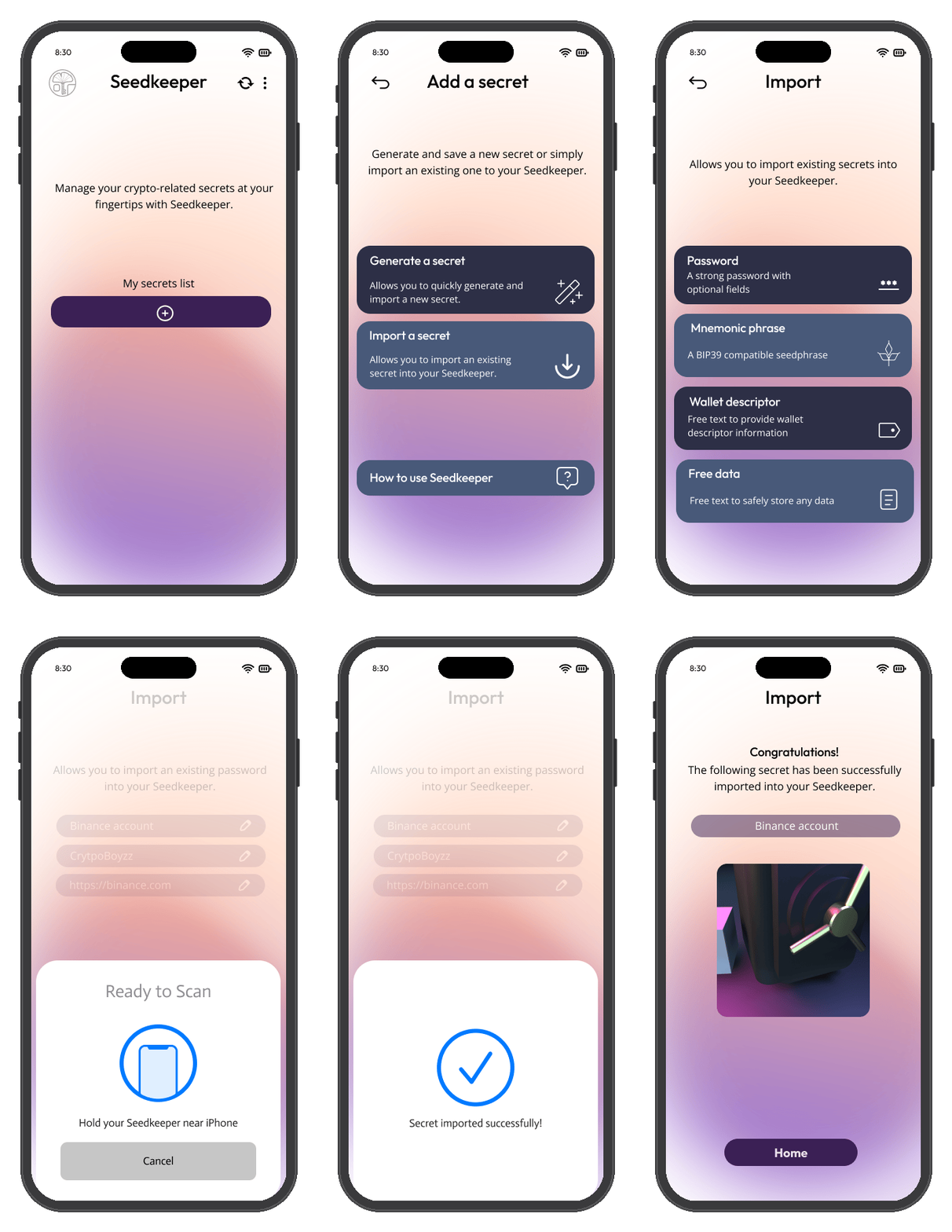
Scan your Seedkeeper, tap Import a Secret → Password, give it a label, enter the password you already have, then save it back to your device.
Overview
Already have a password you want to store on your Seedkeeper, rather than generating a new one? The Seedkeeper App lets you enter it manually and store it directly on your device - nothing is sent anywhere else.
Worth checking before you import: a password reused on another site is only as safe as the weakest service holding it - see Why Password Reuse is Dangerous.
Step-by-Step Instructions
Step 1: Launch the app and scan your Seedkeeper
Open the Seedkeeper App and scan your card or ring, then enter your personal PIN.
See the First Setup Guide if you haven't set up your PIN yet.
Step 2: Start importing a secret
Tap Import a Secret, then Password.
Step 3: Label your password
Specify a label - this is what distinguishes this secret from all the others in your list.
Step 4: Add optional details
- Login (optional) - an email address, username, or nickname
- URL (optional) - the site this password is for
Step 5: Enter your password
Type in the password you want to store.
Step 6: Save it to your device
Tap Import, then scan your card or ring again to store the password.
Your password is now saved on your Seedkeeper.
FAQ
Are the login and URL fields required?
No, both are optional. See Add optional details above.
Should I import a password or generate a new one?
Import if you already have a password you want to keep using. If you're creating an account or want a stronger password, see Creating a New Password instead.
Where is my password stored?
Directly on your Seedkeeper device within the EAL6+ certified secure element - there's no cloud involved.
See Introduction for more on how Seedkeeper works.