Lost OTP Access
When Your Codes Are Rejected or Gone
OTP secrets are write-only on the secure element - they can be written in and never read back. Nothing can be recovered from the device itself. If a code is merely being rejected, the cause is usually the clock or an expired code; if the credential is genuinely gone, you regain access through each service's recovery process and set it up again.
First, Is the Credential Actually Gone?
Three causes look identical from the outside and only one is serious.
The Code Has Expired
A TOTP code lives for thirty seconds. In the app it appears greyed out once it has expired, and entering it produces a rejection.
Tap the account, tap Calculate, and scan your device for a fresh one - see Managing OTP Entries. Your Seedkeeper PRO generates each code on demand rather than counting down, so this is normal operation rather than a fault.
The Clock Is Wrong
TOTP is computed from the current time, so your device and the server must roughly agree.
Your Seedkeeper PRO has no clock of its own - it takes the time from the phone or computer it is connected to. If that device's time is wrong, every code will be wrong. Check the time settings, and enable automatic time if it is off.
This is the cause people spend longest missing, because the app looks perfectly healthy.
You Are Looking at the Wrong Account
Two accounts on the same service, or an issuer name that does not match what you expect. Use the search bar in the accounts list, and check the account name rather than only the issuer.
The Credential Is Genuinely Gone
Device lost, OTP applet reset, or the account deleted by mistake.
There is nothing to recover from the device. The shared secret was written into the secure element and cannot be read back out - not by you, not by the app, not by us. That is precisely the property that protects it from being extracted by malware, and it has this cost.
What you can restore depends entirely on what you kept:
If you saved the original QR code or secret, add the account again on any device - see Adding a TOTP Account. Nothing else is needed.
If you did not, you have to regain access to each service another way, then generate a new credential.
Regaining Access Without the Codes
Work service by service, in this order:
- Recovery codes, if you saved them when enabling two-factor authentication. This is what they are for.
- Another registered method - a passkey, a second authenticator, or a backup phone number.
- The service's account recovery, which typically runs through your email. Secure your mailbox first, since everything else depends on it.
Once back in, remove the old OTP method from the account and set up a new one. Leaving the dead entry in place will confuse you later and, on some services, blocks adding a replacement.
Setting It Up So This Does Not Recur
The constraint is unusual, so the habit has to be deliberate.
Add each code to both devices at once, while the service's QR code is still on screen. This is the only moment the secret is available to you - afterwards there is no migration path between devices.
Or save the original QR code or secret somewhere secure. A screenshot in a secure note on your Seedkeeper works, and keeps it off any cloud - see Creating Secure Notes.
Treat that saved copy as the credential itself. Anyone holding it can generate the same codes as your device.
Full detail in Backup and Restore Procedures.
One device is a single point of failure
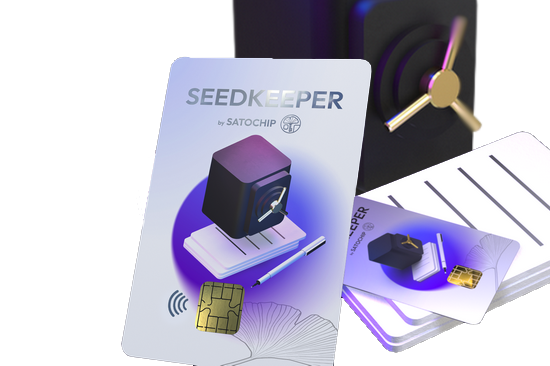
A backup Seedkeeper takes ten minutes to set up and removes the one real risk of hardware security: losing the only device that holds your credentials. Card, ring, or one of each - they pair in any combination.
Add a backup device
If You Only Have One Device and Want a Second
There is no migration, so the sequence is specific:
- Sign in to the service and delete the existing OTP credential
- Set up a new OTP credential
- Add the new code to both devices at the same time
Doing it in that order means a brief window with no second factor on that account, so make sure you can still sign in before you start.
FAQ
Why is my OTP code being rejected?
Usually because it expired, or because the clock on the phone or computer is wrong. Your Seedkeeper PRO takes the time from the connected device, so an incorrect system time produces incorrect codes.
Can I recover my OTP codes from the device?
No. OTP secrets are write-only on the secure element and can never be read back. Recovery depends on having saved the original QR code, or on the service's own account recovery.
Why is my code greyed out?
It has expired. Tap the account, tap Calculate, and scan your device to generate a fresh one - codes are computed on demand rather than counting down continuously.
Can I copy my OTP accounts to a second device?
Not afterwards. To have the same codes on two devices, add them from the same QR code on both at the same time, or keep the original secret so you can set up the second device later.
I lost my device and never saved the QR codes. What now?
Regain access to each service through recovery codes, another registered method, or its account recovery process - then remove the old OTP method and set up a new one.
Related Articles
- Backup and Restore Procedures
- Managing OTP Entries
- Adding a TOTP Account
- Lost or Stolen Device
- What is TOTP?
Still stuck?
If none of the above resolved it, open a support ticket and tell us what you tried - the steps you followed and what happened instead. We read every one, and a clear description usually gets you a straight answer rather than a round of questions.
Open a support ticket