Resetting Your Seedkeeper
Start Fresh When You're Locked Out
Mobile and Desktop
Your device holds three independent applets - password manager, FIDO passkeys and OTP accounts - each with its own PIN and its own reset. Resetting one erases everything in it and touches nothing in the others. None of them recovers a forgotten PIN: a reset returns the applet to factory state, and only a backup brings the data back.
Which Reset Do You Need?
Work out which applet you are locked out of before doing anything. Resetting the wrong one destroys data you did not need to lose.
| You cannot access | Reset | Recoverable afterwards? |
|---|---|---|
| Passwords, secure notes, seed phrases | Password manager | ✅ From a Backup device |
| Passkeys | FIDO applet | ❌ Re-register with each service |
| OTP / 2FA codes | OTP accounts | ⚠️ Only if you saved the original QR codes |
The three are independent. Resetting the FIDO applet does not touch a single password. Resetting the password manager does not remove a passkey. Each has its own PIN and its own attempt counter - see Setting Up Your Passkey PIN.
What a Reset Does and Does Not Do
It does not recover your PIN. There is no bypass, no master code and no recovery procedure. The secure element is built specifically so that no one - including us - can extract or reset a PIN while keeping the data.
It erases everything in that applet, permanently. What returns afterwards depends entirely on what you prepared in advance.
It makes the device usable again. After a reset the applet is back to factory state, ready for a new PIN and new data.
Reset the Password Manager
Erases every password, secure note and seed phrase. Restorable from a Backup device.
The password manager locks after 4 incorrect PIN attempts.
Step 1: Open the Seedkeeper App and go to the menu
Tap the 3-dot menu in the top right corner.
Step 2: Tap Settings
Step 3: Scroll to the bottom and tap "Factory reset my card"
Step 4: Read the warning and tick the checkbox
The screen explains that the operation is irreversible. Tick the box to continue.
Step 5: Tap Start
Step 6: Tap "Send reset command"
Step 7: Scan your card or ring
Step 8: Repeat the scan 5 times
Scan the same device a total of five times to complete the reset.
Step 9: Tap Home
Back on the home screen, set your new PIN.

Five scans plus a checkbox and two confirmation screens are a deliberate safeguard. A reset cannot happen by accident, which matters for an operation that has no undo.
Reset the FIDO Applet
Erases every passkey stored on the device, and the FIDO PIN with them. Passkeys cannot be restored - a hardware-bound passkey exists nowhere else, so you register a new one with each service afterwards.
The FIDO applet locks after 8 incorrect PIN attempts.
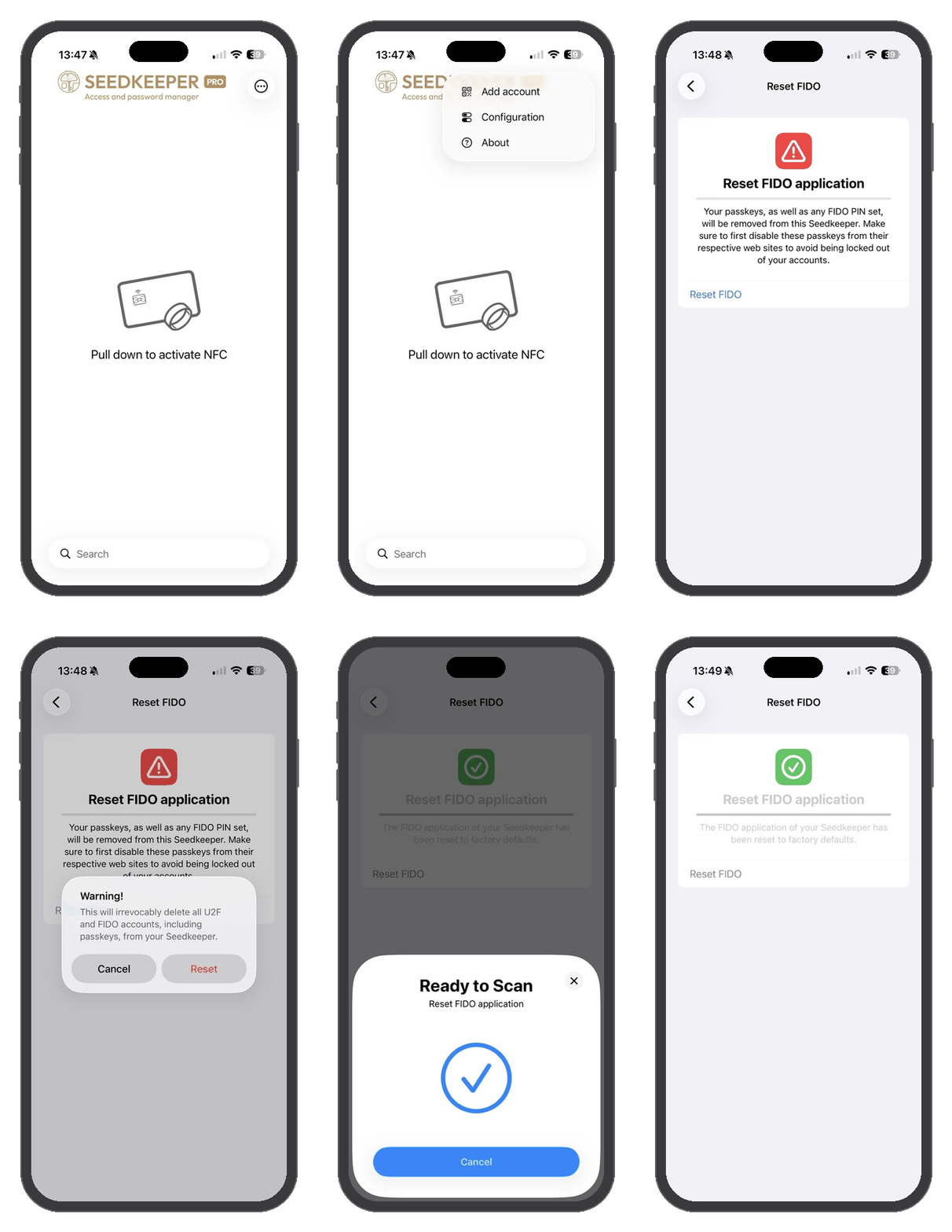
Step 1: Open the Seedkeeper PRO App
Step 2: Open the menu and tap Configuration
Tap the 3-dot menu in the top right corner, then Configuration.
Step 3: Tap "Reset FIDO application"
Step 4: Read the warning and tap "Reset FIDO"
The screen explains that the operation is irreversible.
Step 5: Confirm
A final warning appears. Tap Reset.
Step 6: Scan your card or ring
The FIDO applet is now back to factory state.
Each service still lists a passkey that no longer exists. Sign in another way and remove the stale entries, then register your new passkeys - see Passkey Recovery Strategy.
If you registered a second device, use it to sign in rather than falling back on password recovery.
Reset the OTP Accounts
Erases every TOTP credential on the device. These cannot be recovered from the device, because OTP secrets are write-only on the secure element - see Backup and Restore Procedures.
You can only set them up again if you kept the original QR codes or secrets.
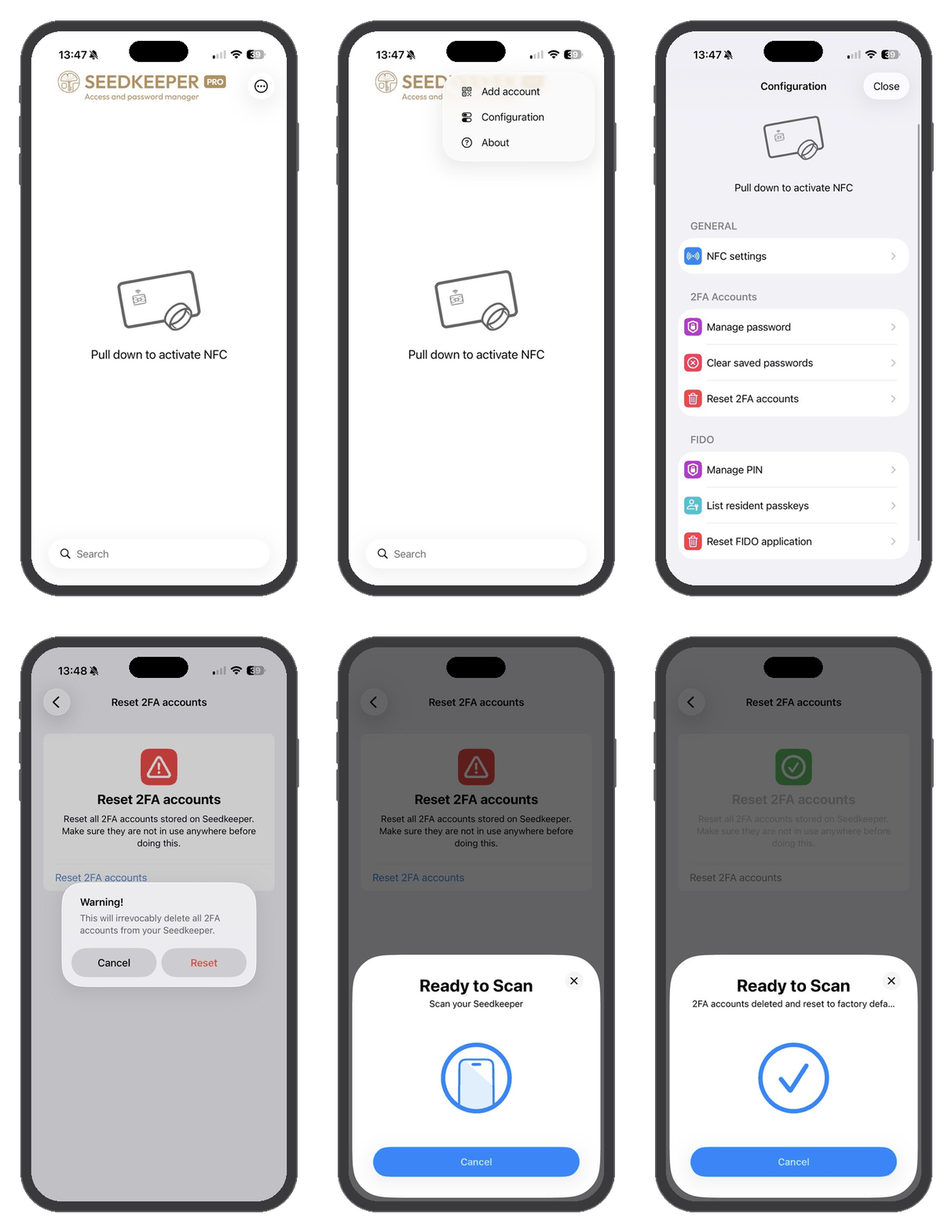
Step 1: Open the Seedkeeper PRO App
Step 2: Open the menu and tap Configuration
Tap the 3-dot menu in the top right corner, then Configuration.
Step 3: Tap "Reset 2FA accounts"
Step 4: Read the warning and tap "Reset 2FA accounts"
The screen explains that the operation is irreversible.
Step 5: Confirm
A final warning appears. Tap Reset.
Step 6: Scan your card or ring
Your OTP accounts are now erased.
If you reset OTP accounts without a saved QR code, you lose the second factor on those services. Make sure you can still sign in - through recovery codes, a second device, or another registered method - before you erase them.
From Desktop Instead
All three resets can also be performed from the desktop apps, with the card in a contact reader or on an NFC reader: the Satochip-Utils App for the password manager, and the Seedkeeper PRO App for FIDO and OTP. The steps and the wording are the same.
The FIDO applet can additionally be reset from Windows or a Chromium browser, which is worth knowing and worth being careful about - the button sits next to the PIN options. See Managing Passkeys From Your Computer.
After a Reset
Password manager: set a new PIN, then restore from your Backup device - see Backup & Recovery.
FIDO: set a new FIDO PIN, then register a new passkey with each service, removing the stale entries as you go - see Setting Up Your Passkey PIN.
OTP: re-add each account from its original QR code, or generate new credentials from each service - see Adding a TOTP Account.
And whichever applet you just rebuilt, this is the moment to set up the redundancy that would have avoided the reset: a Backup device for the password manager, a second registered device for passkeys, and saved QR codes for OTP.
One device is a single point of failure
A backup Seedkeeper takes ten minutes to set up and removes the one real risk of hardware security: losing the only device that holds your credentials. Card, ring, or one of each - they pair in any combination.
Add a backup device

FAQ
Does resetting recover my forgotten PIN?
No. A reset does not recover anything - it returns the applet to factory state. A PIN cannot be recovered or bypassed, by anyone, which is the property that makes the device secure in the first place.
Does resetting one applet erase the others?
No. The password manager, FIDO and OTP applets are independent, each with its own PIN and its own data. Resetting one leaves the other two untouched.
Can I get my passwords back after a reset?
Only from a Backup device. Without one, the secrets on the reset device are permanently lost - there is no cloud copy.
Can I get my passkeys back after a FIDO reset?
No. A hardware-bound passkey exists only on that device, so a reset destroys it. You register a new passkey with each service afterwards, and remove the stale entries from their settings.
Can I get my OTP codes back after a reset?
Only if you saved the original QR codes or secrets. OTP secrets are write-only on the secure element and cannot be read back, so there is nothing to restore from the device itself.
How many wrong PIN attempts trigger a lockout?
Four for the password manager, eight for the FIDO applet. The counters are independent, so failures on one do not affect the other.
Can I reset from a computer instead of my phone?
Yes. The desktop apps perform all three resets with the card in a contact reader or on an NFC reader, and the FIDO applet can also be reset from Windows or a Chromium browser.
Related Articles
- Backup & Recovery
- Setting Up Your Passkey PIN
- Backup and Restore Procedures
- Passkey Recovery Strategy
- Managing Passkeys From Your Computer
Still stuck?
If none of the above resolved it, open a support ticket and tell us what you tried - the steps you followed and what happened instead. We read every one, and a clear description usually gets you a straight answer rather than a round of questions.
Open a support ticket