How to Enable 2FA (TOTP) on Google
Add TOTP Two-Factor Authentication to Your Google Account
Web
Turn on Google's Authenticator-based 2-Step Verification, scan the QR code with your Seedkeeper PRO App, then enter the generated code back into Google to confirm.
Overview
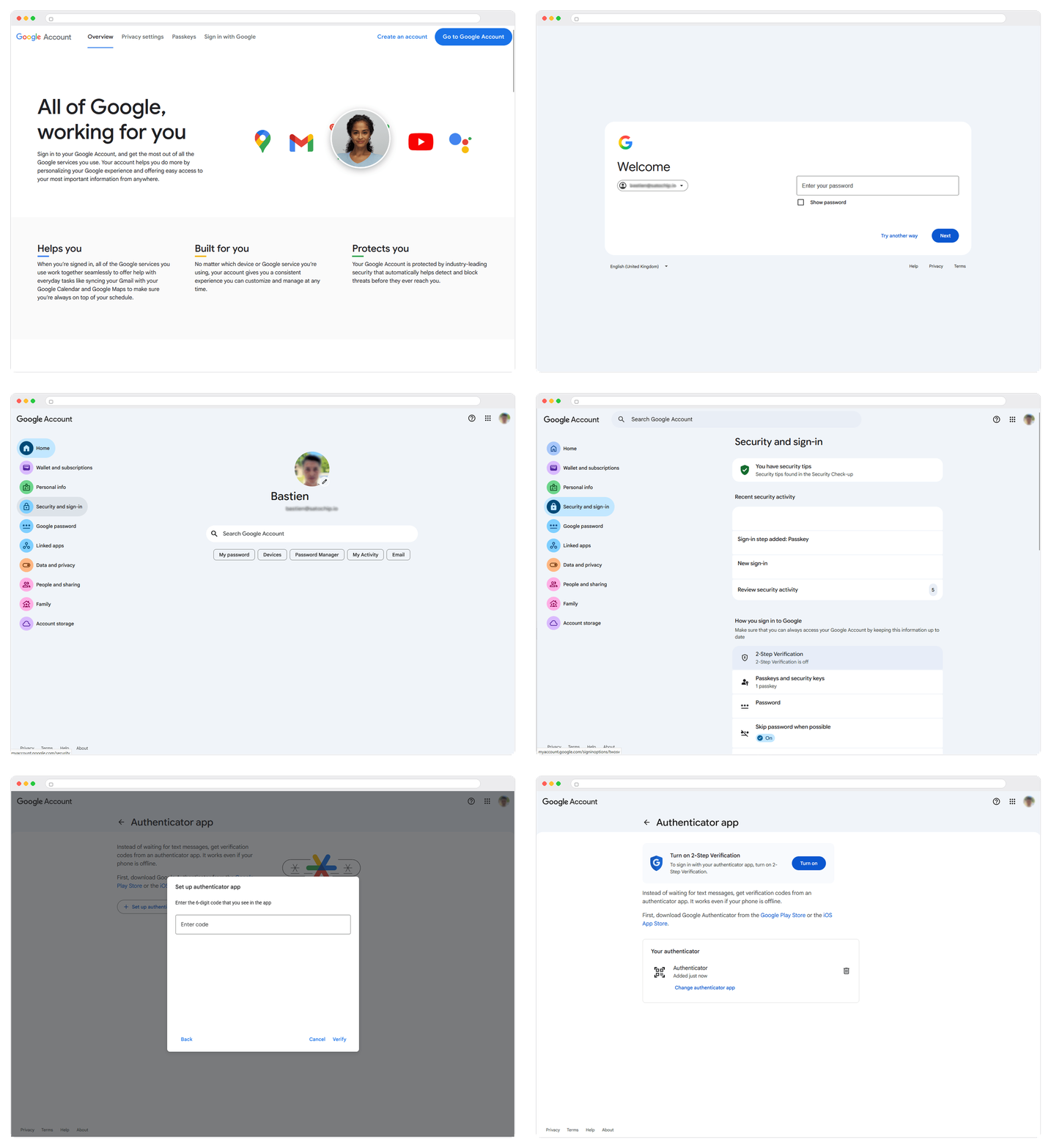
Google supports authenticator apps as a 2-Step Verification method. This guide walks through setting that up using your Seedkeeper PRO instead of a phone-based authenticator app. Here's what the full flow looks like:
TOTP is a large improvement over a password alone, but it is not phishing-resistant: a code is information you read and type, so a convincing fake page can collect it and relay it to the real site inside the same thirty-second window. Where Google also supports passkeys, those close that gap entirely. See Passkey vs OTP.
Step-by-Step Instructions
Step 1: Go to your Google Account
Open myaccount.google.com and sign in with your email and password.
Step 2: Go to Security and sign-in
In the left panel, click Security and sign-in.
Step 3: Open 2-Step Verification
Click 2-Step Verification.
Step 4: Click Authenticator
Step 5: Click Set up authenticator
Step 6: Scan the QR code
Google shows a QR code. Scan it using the Seedkeeper PRO App - see Adding a TOTP Account for the full flow. The app will prompt you to scan your Seedkeeper PRO device to store the new code.
Step 7: Enter the generated code
Your Seedkeeper PRO App now shows a fresh OTP code. Enter it back into the Google setup screen.
Step 8: Click Verify
To activate the OTP code on your account, you have to click Turn on.
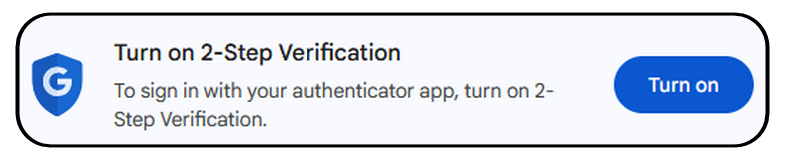
Your Google Account is now protected by an extra layer of authentication via OTP code, generated by your Seedkeeper PRO.
Official Google Resources
FAQ
Do I need the Seedkeeper PRO App for this, or just my Seedkeeper PRO?
You need the Seedkeeper PRO App to scan the QR code and generate the OTP code - unlike passkeys, OTP codes always go through the app.
See Adding a TOTP Account.
What if my code expires before I enter it?
Recalculate it - see Managing OTP Entries.
Can I use both a passkey and TOTP on the same Google Account?
Yes - see How to Enable a Passkey on Google if you'd like to set that up too.
Is a one-time code phishing-resistant?
No. A TOTP code can be relayed to the real site by an attacker in real time, which is exactly what commercial phishing kits do. It counts as multi-factor authentication, but not as phishing-resistant multi-factor authentication - only a passkey achieves that. See Passkey vs OTP.