How to Enable Passkeys on Outlook
Sign In to Outlook Without a Password
Mobile and Web
From your Microsoft account's Advanced Security Options, add a new way to sign in, choose Security key, then register your Seedkeeper PRO as your passkey.
Overview
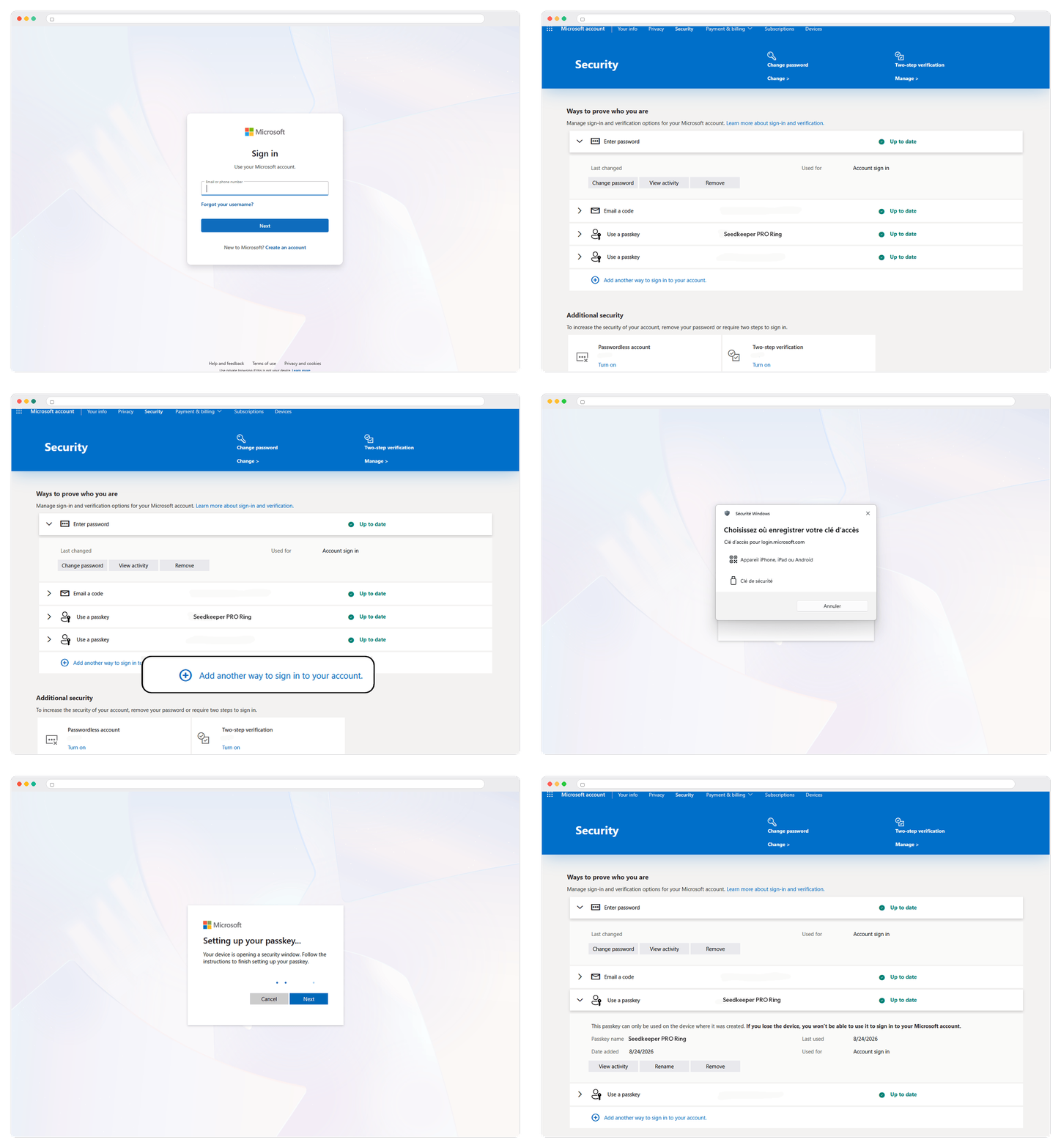
Microsoft accounts (used across Outlook, Microsoft 365, and other Microsoft services) support passkeys as a password replacement. This guide walks through registering your Seedkeeper PRO as that passkey. Here's what the full flow looks like:
The default your browser offers - Face ID, Touch ID, Windows Hello, or a synced credential manager - creates a perfectly valid passkey.
Choosing your Seedkeeper PRO instead changes three things:
- The key exists in one place only. A synced passkey is copied across every device on your cloud account, and that account is usually protected by a password. A hardware passkey is generated inside a certified secure element and physically cannot leave it.
- Nobody else is in the chain. No provider account, no cloud, no vendor login standing between you and your own credentials.
- It travels. The same card or ring works on your phone, your laptop, and a machine that isn't yours - a work computer, a shared workstation - leaving nothing behind.
See "Not All Passkeys Are Stored the Same Way" for the full comparison.
Step-by-Step Instructions
Step 1: Go to Advanced Security Options
Open Microsoft account Advanced Security Options.
Step 2: Sign in
Sign in with the Microsoft account you use for Outlook.
Step 3: Add another way to sign in
Under your sign-in or security methods, click Add another way to sign in to your account.
Step 4: Choose Face, fingerprint, PIN, or security key
Click this option.
Step 5: Choose Security key
Your system prompts you to choose where to store your passkey. Select Security key.
Step 6: Connect your Seedkeeper PRO
Insert your Seedkeeper PRO, or tap it against an NFC reader.
Step 7: Enter your PIN
Provide your passkey PIN.
Your Microsoft account is now secured with a passkey stored on your Seedkeeper PRO.
Managing Your Passkey
Click into a registered passkey to see its details: when it was added, when it was last used, and what it's used for.
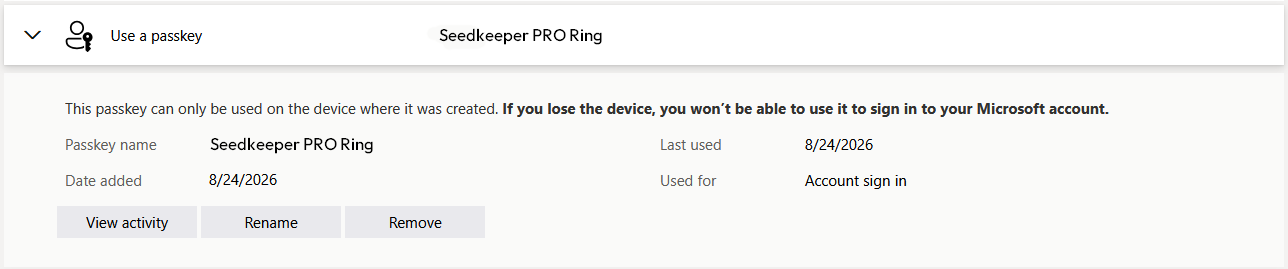
You can also give it a more familiar name by clicking Rename - handy if you use more than one Seedkeeper PRO, so you can tell them apart at a glance (for example, "Seedkeeper PRO - Main", "Ring Backup", "Card Backup").
See Passkey Backup Strategy if you're setting up more than one device.
Deleting a Passkey
To remove or revoke a passkey, click Remove.
Official Microsoft Resources
FAQ
Do I need a PIN before I start?
No - you'll set one up during this process if you don't already have one. See Setting Up Your Passkey PIN for details on that PIN.
Does this remove my Microsoft account password?
No. Adding a passkey doesn't remove or change any existing sign-in or recovery methods on your account. If you'd like to remove it entirely afterward, see How to Replace Passwords with Passkeys on Outlook.
How do I remove a passkey later?
See Deleting a Passkey above.
Why register a Seedkeeper PRO instead of my phone's built-in passkey?
Both are phishing-resistant, so this is about what your credentials depend on. A synced passkey depends on a company and an account you hold with them. A hardware passkey depends on an object in your pocket and nothing else. Given that Outlook protects your mailbox, which is the reset path for nearly everything else, removing the third party is generally the point. See Are Passkeys Safer?.