How to Secure Bitwarden with a Passkey
Log In to Bitwarden Without Your Master Password
Web
From Bitwarden's Security settings, turn on "Log in with passkey," choose a security key instead of your device's built-in biometrics, then connect your Seedkeeper PRO to register it.
Enable Use for vault encryption while registering and your Seedkeeper PRO also decrypts the vault - one tap and a PIN replaces the master password entirely in day-to-day use.
Overview
Bitwarden actually offers three separate passkey features - it's worth knowing which one this covers:
- Storing passkeys for other services in your Bitwarden vault (Bitwarden acting as a passkey manager) - not what this guide covers.
- Logging in to Bitwarden itself with a passkey - this guide.
- Using a passkey for 2FA on your Bitwarden account (a separate setup) - not what this guide covers.
Logging in with a passkey bypasses Bitwarden's usual two-step login entirely - your Seedkeeper PRO covers authentication in one step, without needing your master password to sign in. This currently only works in Bitwarden's browser extension (Chromium-based browsers) and the web app - not the mobile or desktop apps.
There is a second layer worth setting up at the same time: your Seedkeeper PRO can also decrypt the vault, not just prove who you are. See Unlocking the Vault, Not Just Signing In below.
You can add up to 5 passkeys per account. Even with vault decryption enabled, the master password remains the way back in if you lose every registered passkey - so keep it strong and stored somewhere safe rather than forgetting it.
A secure note on a Seedkeeper is a good home for it: offline, hardware-backed, and available even if every browser you own is gone.
The default your browser offers - Face ID, Touch ID, Windows Hello, or a synced credential manager - creates a perfectly valid passkey.
Choosing your Seedkeeper PRO instead changes three things:
- The key exists in one place only. A synced passkey is copied across every device on your cloud account, and that account is usually protected by a password. A hardware passkey is generated inside a certified secure element and physically cannot leave it.
- Nobody else is in the chain. No provider account, no cloud, no vendor login standing between you and your own credentials.
- It travels. The same card or ring works on your phone, your laptop, and a machine that isn't yours - a work computer, a shared workstation - leaving nothing behind.
See "Not All Passkeys Are Stored the Same Way" for the full comparison.
Step-by-Step Instructions
Step 1: Go to Settings → Security
In the Bitwarden web app, go to Settings → Security.
Step 2: Select Master password
Step 3: Turn on Log in with passkey
Under Log in with passkey, select Turn on (or New passkey if you already have one). Enter your master password when prompted.
Step 4: Choose a security key instead of your device
Your browser will default to your device's own biometrics (like Touch ID). You may need to cancel out of that prompt to choose a hardware security key instead.
Step 5: Connect your Seedkeeper PRO
Insert your Seedkeeper PRO, or tap it against an NFC reader.
Step 6: Enter your PIN
Provide your passkey PIN to complete the registration.
Step 7: Name it, and enable vault encryption
Enter a name for your passkey. Before confirming, switch on Use for vault encryption - this is what lets the device decrypt your vault as well as sign you in.
Then select Turn on.
The vault encryption option is offered when the passkey is created. If you skip it, the passkey works for sign-in only, and enabling it afterwards means removing that passkey and registering a new one.
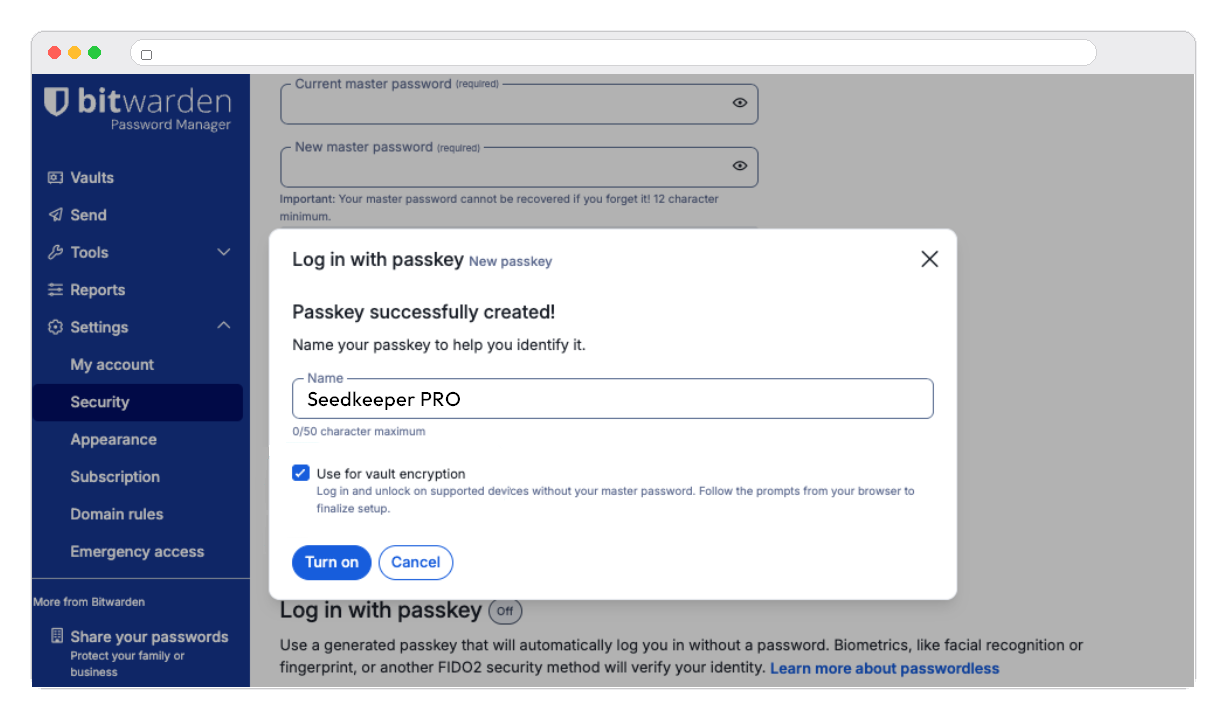
You can now log in to Bitwarden using your Seedkeeper PRO instead of your master password.
Unlocking the Vault, Not Just Signing In
Signing in and decrypting the vault are two different things in Bitwarden, and it is worth understanding why.
Your vault is encrypted with a key derived from your master password. Proving your identity with a passkey gets you through the door; without something to derive a decryption key from, Bitwarden would still have to ask for the master password to open the vault behind it.
PRF solves that. It lets Bitwarden derive a stable secret from your passkey - the same value every time, produced inside the secure element and never leaving it. That secret becomes the vault decryption key, so the hardware itself opens the vault.
The practical result: tap your Seedkeeper PRO, enter your PIN, and you are in the vault. No master password anywhere in the flow.
What This Requires
| Requirement | Status |
|---|---|
Authenticator supports hmac-secret | ✅ Seedkeeper PRO does - see Device Capabilities |
Browser exposes the WebAuthn prf extension | ✅ Chromium-based browsers - Chrome, Edge, Brave |
| Use for vault encryption enabled at registration | Your choice, see Step 7 |
Support outside Chromium is still uneven, so Firefox and Safari may sign you in without unlocking the vault. That is a browser limitation rather than a device one.
Why This Matters More Here Than Elsewhere
A password manager is the one account that guards every other account. Moving its decryption key from something you remember - which can be phished, guessed or leaked - to something that exists only inside a certified secure element changes the security of everything in the vault at once.
It also removes the daily friction that pushes people toward weak master passwords in the first place.
Managing Your Passkeys
Go to Settings → Security → Master password to see your registered passkeys.
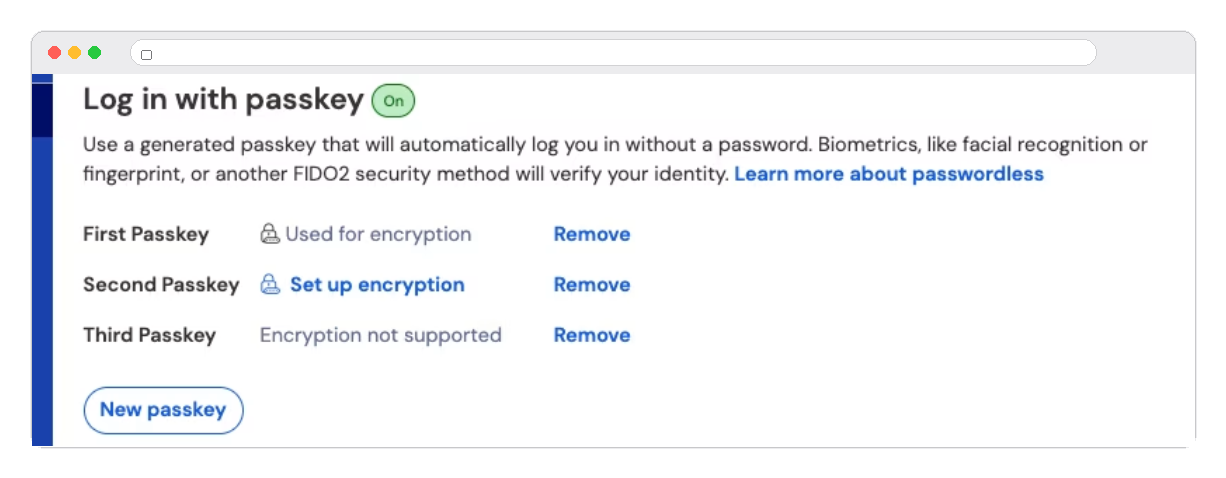
- Remove: select Remove next to the passkey. This disconnects it from Bitwarden - the credential itself remains on your Seedkeeper PRO.
- Add another: repeat the steps above for a backup device - see Passkey Backup Strategy.
Passkey login isn't available if your organization requires SSO, SSO with trusted devices, or uses Key Connector.
Where This Fits
Bitwarden and a Seedkeeper PRO solve adjacent problems rather than competing ones: the vault holds hundreds of credentials with autofill, while the hardware key controls who gets into it - and, with vault encryption enabled, holds the key that opens it.
Storing your master password on the device as a secure note completes the setup: the hardware handles daily access, and the same object holds the recovery path you now rarely need. See Password Manager Explained for how the two combine.
Official Bitwarden Resources
FAQ
Does logging in with a passkey also unlock my vault?
Yes, when you enable Use for vault encryption at registration and use a Chromium-based browser. Seedkeeper PRO supports the hmac-secret extension behind WebAuthn PRF, which is what Bitwarden uses to derive the vault decryption key. See Unlocking the Vault, Not Just Signing In above.
I enabled the passkey but Bitwarden still asks for my master password. Why?
Two likely causes: vault encryption was not enabled when the passkey was created, or you are using a browser that does not expose the prf extension. Chromium-based browsers do; Firefox and Safari support is uneven.
Can I still forget my master password once this works?
No. It remains the recovery path if you lose every registered passkey, and Bitwarden cannot reset it for you. Store it somewhere safe and offline rather than relying on memory.
Does this replace 2-step login too?
Yes - logging in with a passkey bypasses two-step login entirely. This is different from using a passkey specifically as a 2FA method, which is a separate Bitwarden feature.
Can I add more than one Seedkeeper PRO as a backup?
Yes, up to 5 passkeys per account - see Passkey Backup Strategy for a recommended setup.
Why register a Seedkeeper PRO instead of my phone's built-in passkey?
Both defeat phishing, so the honest answer is that it depends what the account is worth. A synced passkey is copied to every device on your cloud account, and that account is the new target. A Seedkeeper PRO passkey exists on one certified chip that cannot export it, with no provider in the chain - which matters when the account guards the vault holding all your other passwords. See Not All Passkeys Are Stored the Same Way.