How to Secure Proton with a Passkey
Add a Hardware Security Key to Your Proton Account
Web
From Proton's Account and password settings, under Two-factor authentication, register your Seedkeeper PRO as a security key - it works alongside your password as a phishing-resistant second factor.
Overview
Proton lets you register a hardware security key like your Seedkeeper PRO as your two-factor authentication method. Unlike some of the other services covered in this section, this doesn't replace your password entirely - you'll still enter it when signing in, with your Seedkeeper PRO providing the second factor instead of an authenticator app or SMS code.
This guide covers securing your Proton account itself with your Seedkeeper PRO as a security key. Proton Pass (Proton's password manager) has a separate, unrelated passkey feature: it can store passkeys for other websites, similar to iCloud Keychain or Google Password Manager. That feature is only available in Proton's browser extension, and on Android 14+ or iOS - with some known gaps (OnePlus and Oppo devices aren't supported, and some Samsung phones show a display bug). See Proton Pass passkeys for details - it's a different tool from what's covered here.
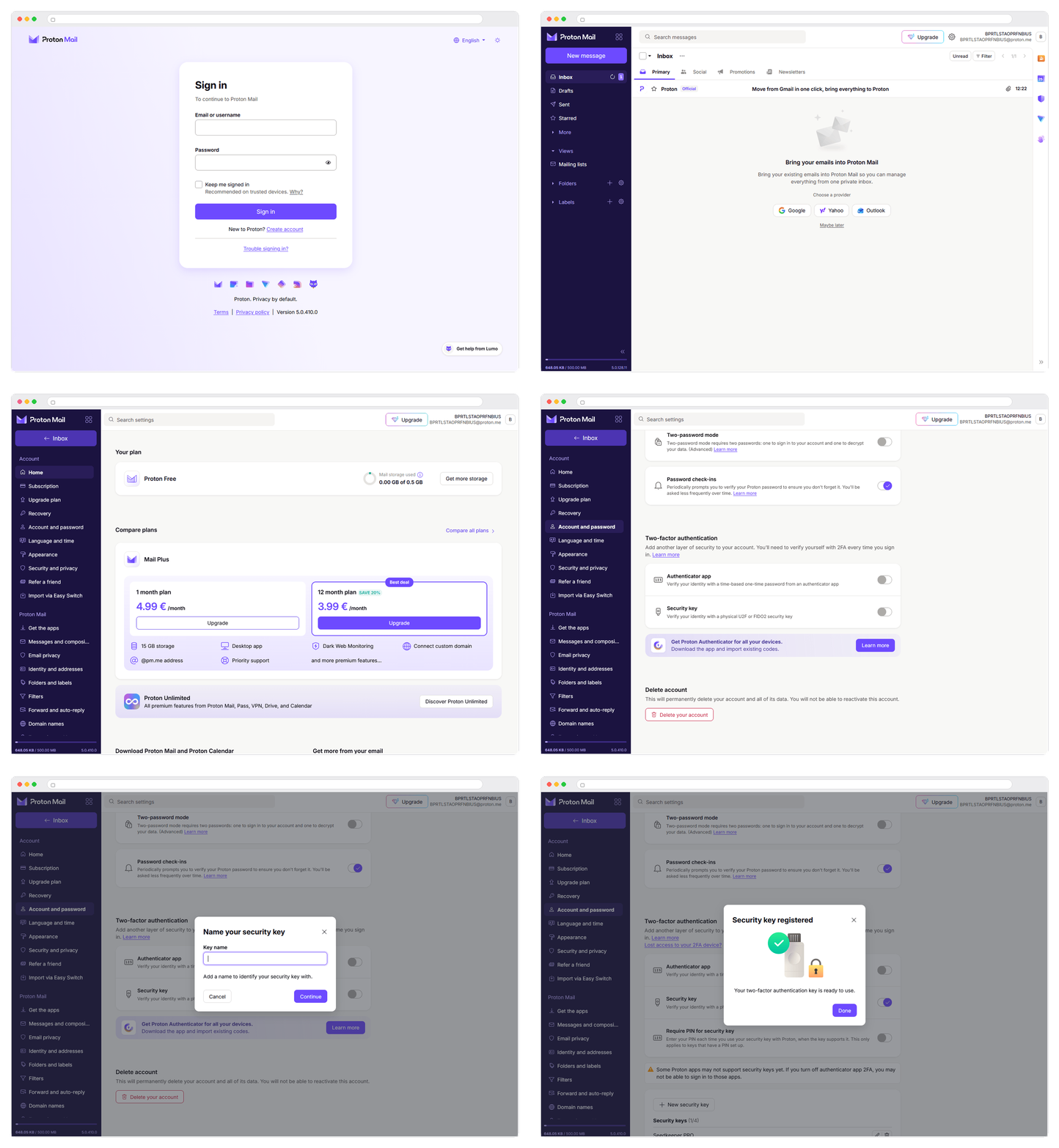
Here's what the full flow looks like:
The default your browser offers - Face ID, Touch ID, Windows Hello, or a synced credential manager - creates a perfectly valid passkey.
Choosing your Seedkeeper PRO instead changes three things:
- The key exists in one place only. A synced passkey is copied across every device on your cloud account, and that account is usually protected by a password. A hardware passkey is generated inside a certified secure element and physically cannot leave it.
- Nobody else is in the chain. No provider account, no cloud, no vendor login standing between you and your own credentials.
- It travels. The same card or ring works on your phone, your laptop, and a machine that isn't yours - a work computer, a shared workstation - leaving nothing behind.
See "Not All Passkeys Are Stored the Same Way" for the full comparison.
Step-by-Step Instructions
Step 1: Log in to Proton Mail
Go to account.proton.me/login and sign in.
Step 2: Open Settings
Click the gear icon in the top right, then click All settings.
Step 3: Go to Account and password
Step 4: Find Two-factor authentication
Scroll down to the Two-factor authentication section.
Step 5: Select Security key
Step 6: Confirm your password
Proton asks you to re-enter your password for security reasons.
Step 7: Connect your Seedkeeper PRO
Insert your Seedkeeper PRO, or tap it against an NFC reader, then click Continue.
Step 8: Follow your operating system's prompt
Your OS will display its own connection method. On Windows, for example, you may need to unplug and plug your Seedkeeper PRO back in to confirm.
Step 9: Name your key
Give it a friendly name - for example, "Seedkeeper PRO" - so you can recognize it later.
You're done - your Seedkeeper PRO is now registered as a security key on your Proton account.
Managing Your Passkeys
Stay on the Account and password page and scroll down to see your registered security keys.
- Add another: click New security key - handy if you want a backup device. See Passkey Backup Strategy for a recommended setup.
- Rename or delete: use the options next to each registered key.
Official Proton Resources
FAQ
Is this the same as Proton Pass's passkey feature?
No - Proton Pass has its own separate feature for storing passkeys for other websites. See the note in the Overview above, or Proton Pass passkeys for that feature specifically.
Does this replace my Proton password?
No - your Seedkeeper PRO acts as your second factor, alongside your password. See the Overview above.
Can I add more than one Seedkeeper PRO as a backup?
Yes, via New security key - see Passkey Backup Strategy for a recommended setup.
Why register a Seedkeeper PRO instead of my phone's built-in passkey?
Your phone's passkey is a real improvement over a password and costs nothing. The difference is where the key lives: synced across a cloud account you have to keep secure, versus a single secure element with no export path and nobody else in the chain. For Proton, which protects your mailbox, which is the reset path for other accounts, that distinction is usually worth the extra step. See Are Passkeys Safer?.