How to Secure GitHub with a Passkey
Sign In to GitHub Without a Password or 2FA
Web
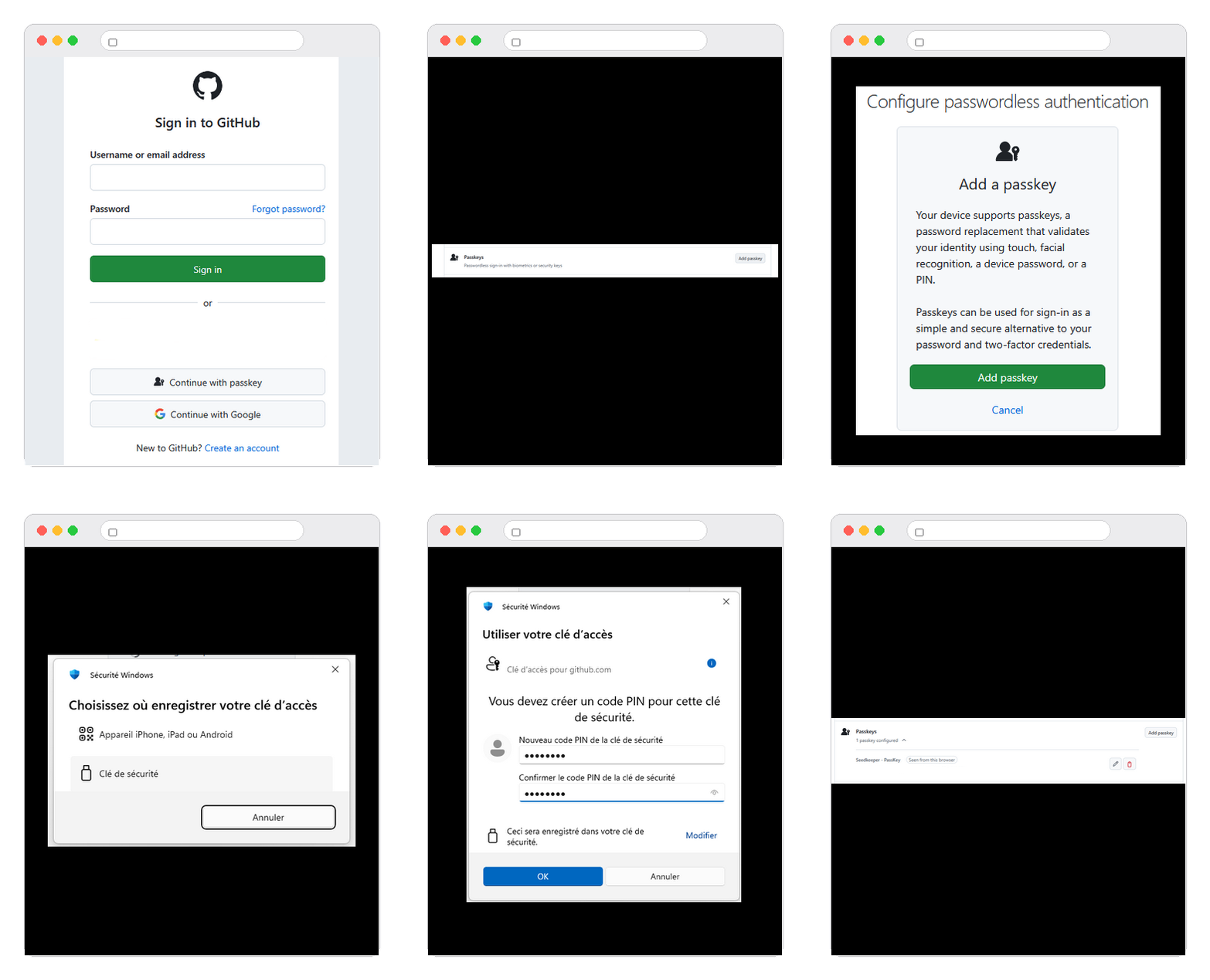
From GitHub's Password and authentication settings, add a passkey, choose a security key instead of your device's built-in biometrics, then connect your Seedkeeper PRO to register it.
Overview
GitHub supports passkeys as a way to sign in safely and easily, without needing a password and a separate 2FA step - your Seedkeeper PRO covers both at once. That single step is also phishing-resistant, which a password plus a one-time code is not - see Passkey vs OTP.
The default your browser offers - Face ID, Touch ID, Windows Hello, or a synced credential manager - creates a perfectly valid passkey.
Choosing your Seedkeeper PRO instead changes three things:
- The key exists in one place only. A synced passkey is copied across every device on your cloud account, and that account is usually protected by a password. A hardware passkey is generated inside a certified secure element and physically cannot leave it.
- Nobody else is in the chain. No provider account, no cloud, no vendor login standing between you and your own credentials.
- It travels. The same card or ring works on your phone, your laptop, and a machine that isn't yours - a work computer, a shared workstation - leaving nothing behind.
See "Not All Passkeys Are Stored the Same Way" for the full comparison.
Step-by-Step Instructions
Step 1: Go to Settings
In the upper-right corner of any GitHub page, click your profile picture, then click Settings.
Step 2: Go to Password and authentication
In the "Access" section of the sidebar, click Password and authentication.
Step 3: Add a passkey
Under Passkeys, click Add a passkey.
Step 4: Authenticate
If prompted, authenticate with your password or another existing method.
Step 5: Confirm
Under Configure passwordless authentication, review the prompt, then click Add passkey.
Step 6: Choose a security key instead of your device
You'll be offered your device's biometrics or a synced credential manager by default. Look for an option like Use another device or Security key instead, so you can register your Seedkeeper PRO.
Step 7: Connect your Seedkeeper PRO
Insert your Seedkeeper PRO, or tap it against an NFC reader.
Step 8: Enter your PIN
Provide your passkey PIN to complete the registration.
Step 9: Confirm
Review the confirmation that your passkey was registered, then click Done.
You can now sign in to GitHub using your Seedkeeper PRO instead of your password and 2FA.
Removing a Passkey
Go to Settings → Password and authentication, click the icon next to the passkey you want to remove, review the confirmation, then click Delete.
If your Seedkeeper PRO is device-bound (not synced to a cloud provider), losing it means losing that passkey for good. GitHub recommends registering passkeys on at least two devices - see Passkey Backup Strategy.
Official GitHub Resources
FAQ
Does a passkey replace my GitHub 2FA?
Yes - signing in with a passkey covers both password and 2FA in one step.
Can I upgrade an existing security key to a passkey?
Yes, if you already registered your Seedkeeper PRO as a 2FA security key, GitHub may offer an upgrade option in the same Add a passkey flow. See Managing your passkeys for details.
Can I add more than one Seedkeeper PRO as a backup?
Yes, and it's recommended - see Passkey Backup Strategy.
Why register a Seedkeeper PRO instead of my phone's built-in passkey?
Because the key never leaves the device and is not copied anywhere. A synced passkey lives in a provider's cloud and is only as safe as your account with them; a Seedkeeper PRO passkey is generated inside an EAL6+ secure element and physically cannot be extracted. It also works on computers that aren't yours, which a phone-bound passkey does not. See Not All Passkeys Are Stored the Same Way.