How to Secure Facebook with a Passkey
Sign In to Facebook Without a Password
Mobile and Web
From Facebook's Accounts Center - on mobile or desktop - create a passkey, choose a hardware security key, then connect your Seedkeeper PRO to register it.
Overview
Facebook supports passkeys across its apps and on the web, including hardware security keys like your Seedkeeper PRO. You can create up to 5 passkeys per Meta Account, so there's room for a Main device and a couple of backups. The same passkey also works for Messenger.
Here's what the full flow looks like:
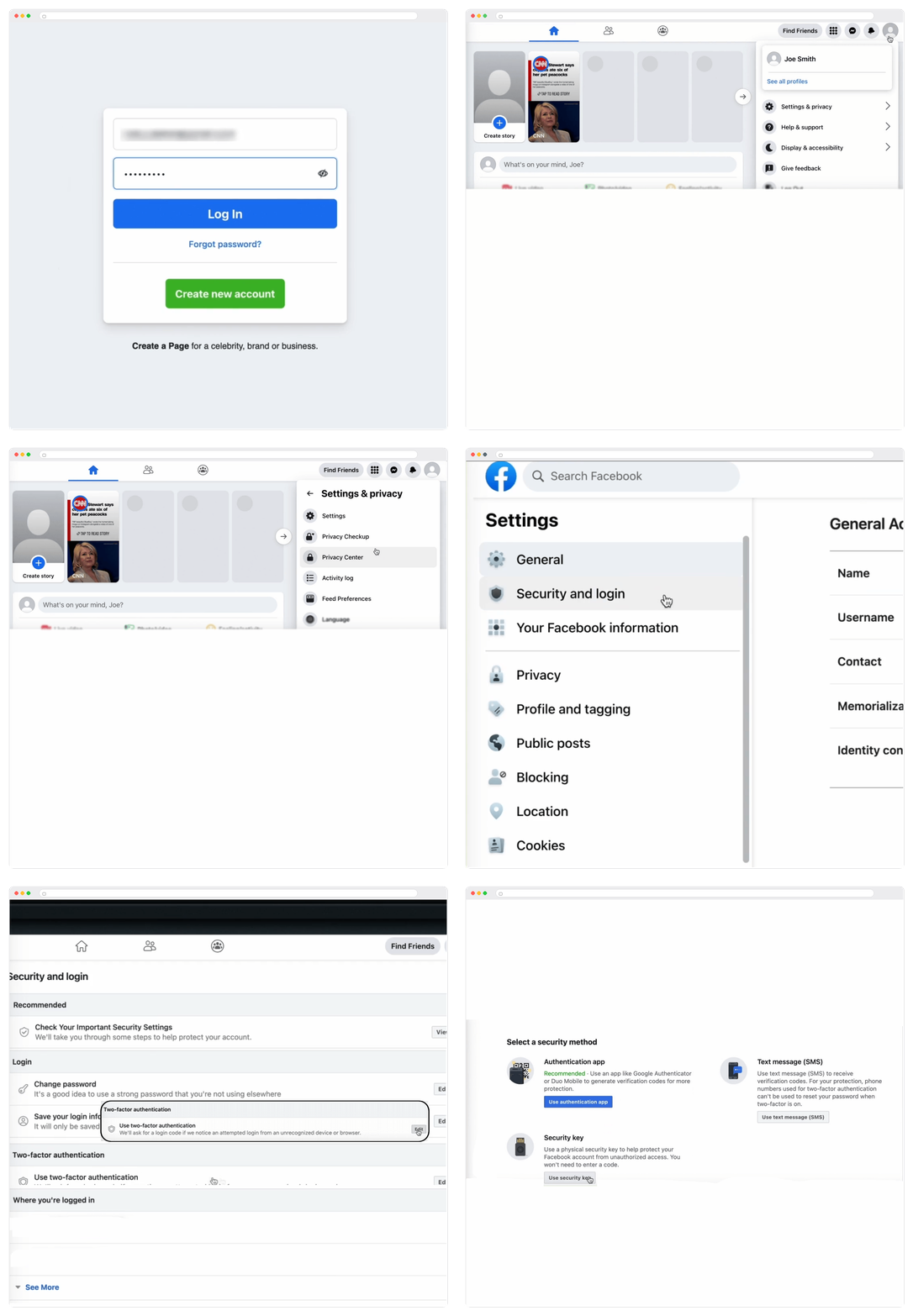
To set up a passkey on a computer, you'll need Windows 10, macOS Ventura, ChromeOS 109, or later - or, regardless of OS version, a hardware security key that supports the FIDO2 protocol, like your Seedkeeper PRO.
The default your browser offers - Face ID, Touch ID, Windows Hello, or a synced credential manager - creates a perfectly valid passkey.
Choosing your Seedkeeper PRO instead changes three things:
- The key exists in one place only. A synced passkey is copied across every device on your cloud account, and that account is usually protected by a password. A hardware passkey is generated inside a certified secure element and physically cannot leave it.
- Nobody else is in the chain. No provider account, no cloud, no vendor login standing between you and your own credentials.
- It travels. The same card or ring works on your phone, your laptop, and a machine that isn't yours - a work computer, a shared workstation - leaving nothing behind.
See "Not All Passkeys Are Stored the Same Way" for the full comparison.
Step-by-Step Instructions
Step 1: Go to your account settings
Open Facebook (app or web) and go to Settings & privacy, then Meta Account Settings.
Step 2: Go to Accounts Center
Step 3: Go to Password and security
Step 4: Open Passkey
Step 5: Create a passkey
Select Create passkey, then confirm with your Facebook password.
Step 6: Choose a security key instead of your device
You'll be prompted to create the passkey, typically defaulting to your device's own biometrics or a synced credential manager. Look for an option like Other options or Security key instead, so you can register your Seedkeeper PRO.
Step 7: Connect your Seedkeeper PRO
Insert your Seedkeeper PRO, or tap it against an NFC reader.
Step 8: Enter your PIN
Provide your passkey PIN to complete the registration.
Facebook confirms the passkey has been created, and you can now sign in using your Seedkeeper PRO instead of your password.
Official Meta Resources
Removing a Passkey
Go back to Passkey in Accounts Center, then select Remove next to the passkey you want to delete. You'll need to re-enter your password to confirm.
FAQ
Does adding a passkey remove my Facebook password?
No. Your password still exists and is used to sign in on devices that don't have your passkey.
Does the same passkey work for Messenger?
Yes - Facebook and Messenger share the same passkey once it's set up.
Can I add more than one Seedkeeper PRO as a backup?
Yes, up to 5 passkeys per Meta Account - see Passkey Backup Strategy for a recommended setup.
Why register a Seedkeeper PRO instead of my phone's built-in passkey?
Both are phishing-resistant, so this is about what your credentials depend on. A synced passkey depends on a company and an account you hold with them. A hardware passkey depends on an object in your pocket and nothing else. Given that Facebook protects your Meta account across Facebook, Messenger and Instagram, removing the third party is generally the point. See Are Passkeys Safer?.